Jobs#
A record of what you do for a client. A job is one client's folder — "Bathroom refit". The job itself is never invoiced, though: inside it are work sheets, and the sheet is what gets closed and invoiced.
You will find them in Moje firma → Agenda → Zakázky.
Three levels, not two#
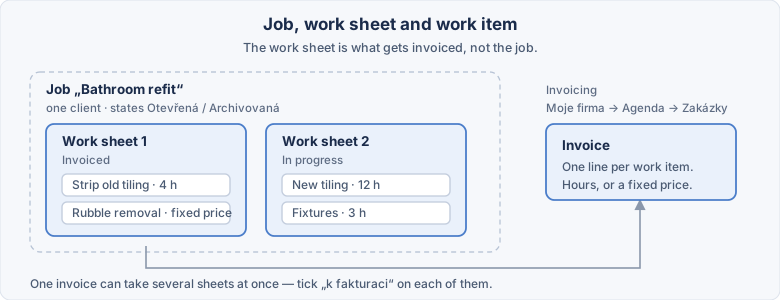
| Term | What it is |
|---|---|
| Zakázka (job) | a folder for one client — "Bathroom refit" |
| Pracovní list (work sheet) | an invoicing batch inside the job — "Work sheet 1" |
| Práce (work item) | one row on the sheet — "Strip old tiling, 4 hours" |
A job is neither closed nor invoiced — the work sheet is
If you are looking for a "Close" or "Invoice this job" button on the job, there is none. A job only has Otevřeno (open) and Archivováno (archived); closing, invoicing and the lock against changes all sit on the individual work sheets. Miss this and you wait for an invoice that is never going to appear.
A long job can therefore be invoiced in stages: you invoice the first sheet while the second stays open and keeps being written into.
The job list#
| Column | What it shows |
|---|---|
| Firma (company) | which company the job belongs to |
| Klient (client) | the customer from the Invoicing address book |
| Název (name) | the job's name |
| Účet (account) | ✓ when the client has a linked user account, otherwise ✗ |
| Stav (state) | Otevřená (open) / Archivovaná (archived) |
| Počet prací, Σ hodin, Σ cena | totals across all the job's sheets |
The Účet column tells you whether the client can see the job on the site
✗ is not a fault — it only means the customer has no user account linked on their card, so the job does not show up for them in the Moje zakázky section of the site. That is fixed on the customer, not here.
„— interní“ instead of a client = a job with no client yet
A job can be saved without a client (say, when you do not have them in the address book yet). If you see this text, fill the client in before you invoice — otherwise the job cannot be invoiced.
The job's details#
The form has two tabs: Zakázka (job) and Pracovní listy (count) (work sheets). The second one is covered in Work sheets.
Základní údaje (Basics)#
| Field | Purpose |
|---|---|
| Firma (company) | which company the job belongs to; required |
| Název zakázky (job name) | required |
| Poznámka (interní) (internal note) | text for you only; the client never sees it |
Klient (Client)#
| Field | Purpose |
|---|---|
| Klient (client) | a customer from the Invoicing address book; required only for invoicing |
| Kontakt klienta (client contact) | a specific person at the client; with none picked, the first contact is used |
A job without a client can be saved — it is enough to add the client before you start invoicing. While it is missing, the saved job shows a yellow notice in the Klient section: Zakázka nemá klienta. Uložit ji jde, ale vyfakturovat ji nepůjde, dokud klienta nedoplníte. (the job has no client; you can save it, but it cannot be invoiced until you add one). On the Pracovní listy tab the invoicing box says the same: Zakázka nemá klienta — fakturu z ní nepůjde vystavit. Doplňte klienta na záložce Zakázka.
Without a client no invoice is issued
Press Vystavit fakturu (issue invoice) on a job without a client and the administration refuses with Zakázka nemá klienta — vyfakturovat ji nelze. Doplňte klienta v detailu zakázky (záložka Zakázka), nebo listy jen uzavřete. (the job has no client and cannot be invoiced; add the client on the Zakázka tab, or just close the sheets). Nothing is issued and the sheets stay as they were. If you track internal work you will never invoice, leave the client empty; otherwise fill it in as soon as you can so it is not forgotten at invoicing time.
The client account is entered on the customer, not here
There is no account field on the job any more. What the client sees on the site under their jobs is driven by the user link on their customer card.
Fakturace (Invoicing)#
Two optional fields that override the client's settings for this one job:
| Field | Purpose | Left empty |
|---|---|---|
| Typ dokladu (document type) | a proforma instead of a regular invoice, say | — dle odběratele — (per customer) |
| Měna (currency) | the currency of the issued document | — dle odběratele — (per customer) |
Picking the client prefills both fields from their profile
They come from the chosen client's billing profile. Switch the client and they are overwritten again — so make any manual change afterwards, not before.
Changing the currency on a running job does not recalculate the prices already entered
Only the currency the document is issued in changes. Rates and amounts on the work items stay exactly as you typed them.
Save first, then create sheets
The Pracovní listy tab only lights up once the job has been saved.
Archiving#
Archiving is the end of the job, not an invoicing action. It invoices nothing and retroactively closes nothing — it just locks the whole folder against further writing.
| Button | What it does |
|---|---|
| Archivovat zakázku (archive job) | locks the job, its sheets and its work items |
| Vrátit z archivu (restore from archive) | unlocks it again; asks for a Důvod (reason) |
An archived job is read-only — except for comments
The administration writes Zakázka je archivovaná — je jen ke čtení. Nejdřív ji vraťte z archivu. You cannot add a sheet or a work item, and an attempt to save ends with Archivovaná zakázka je jen ke čtení. Nejdřív ji vraťte z archivu („Vrátit z archivu"), teprve pak lze zapisovat. (an archived job is read-only; restore it first, then you can write). Comments are not locked, though — both you and the client can keep writing them even after archiving (useful for settling a complaint, but be aware a "closed" job can still receive messages). Before archiving, check there is no unfinished sheet still waiting to be invoiced — such a sheet stays uninvoiced and locked.
Archiving does not invoice
An archived job with an uninvoiced sheet means money never sent. Invoice first, archive afterwards.
Postup: create a job#
- Open Moje firma → Agenda → Zakázky and press Nová zakázka (new job).
- Pick the Firma and fill in the Název zakázky.
- Pick the Klient; optionally narrow it down with Kontakt klienta. If the client is not in the address book yet, you can save the job without one and add it before invoicing.
- If you need a different Typ dokladu or Měna than the client has, fill them in under Fakturace; otherwise leave them empty.
- Press Uložit (save).
- Switch to the Pracovní listy tab and press Přidat list (add sheet) — see Work sheets.
Related#
- Work sheets — entering work, closing and invoicing.
- Invoicing address book — the client's billing profile and the account they see the job under on the site.
- Company profile — the seller, the number series and the last resort for document type, currency and VAT.
- Invoices — the document a sheet turns into.
- My jobs — what the client sees of a job on the site.