Working with tables#
Most screens in the administration are a list of records. Every list is operated the same way — whether it holds users, invoices or products.
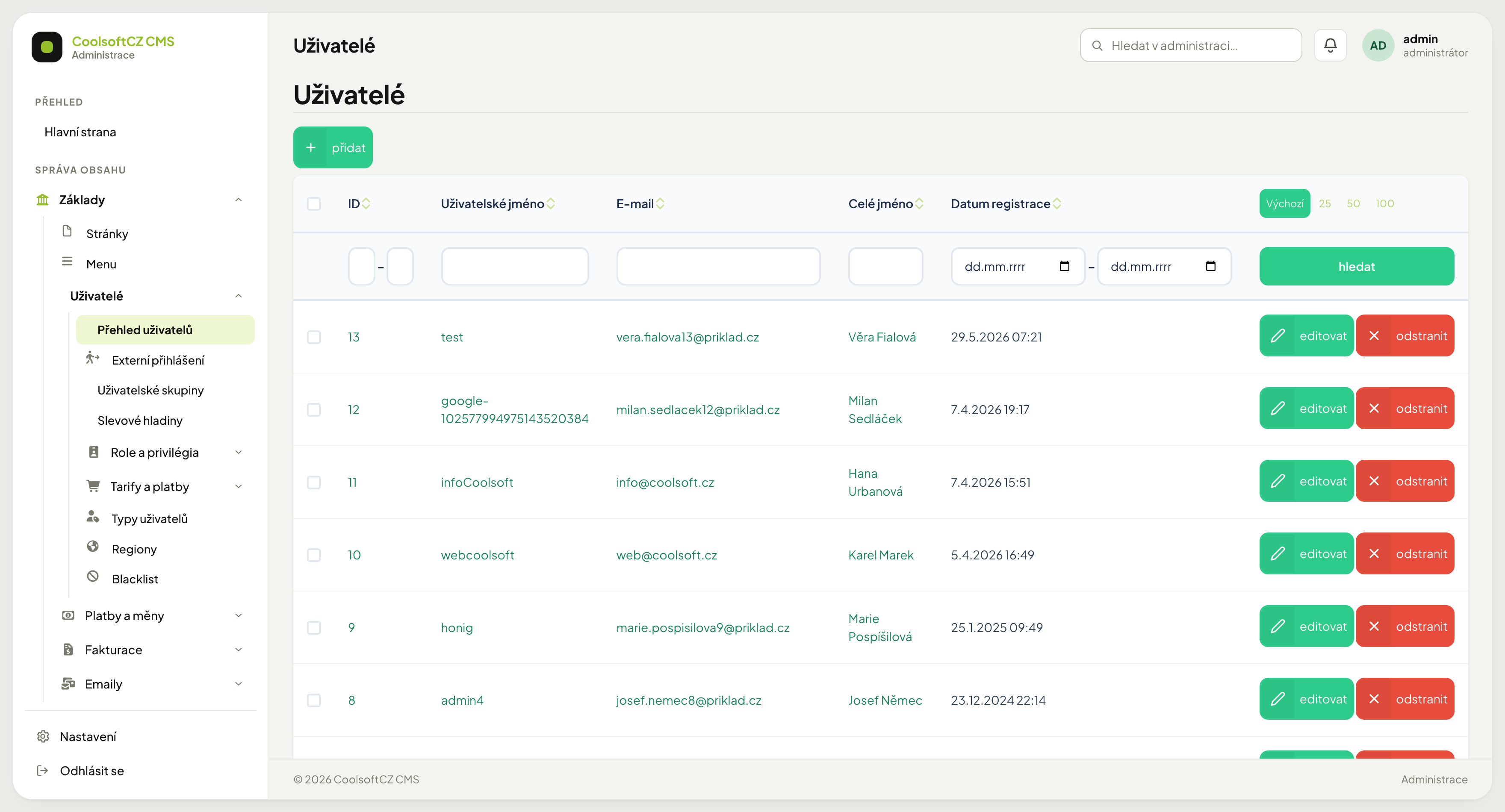
Parts of the table#
The Přidat (Add) button above the table creates a new record.
Search and sorting. Depending on the Zobrazení filtrů v přehledech (filter layout in lists) option chosen in Administration settings, the filter fields sit either in a row under the column names or in a separate panel above the table. See Search and filters.
Rows-per-page switch on the right of the header — Výchozí (default), 25, 50, 100.
Checkboxes in the first column mark rows for bulk actions.
Row actions at the end of each row — the main action (typically Upravit, edit) and a ⋯ button with a menu of further actions; see Row actions.
The Hromadné akce (Bulk actions) panel below the table; see Bulk actions.
Buttons in the administration start with a capital letter: Přidat (Add), Hledat (Search), Upravit (Edit), Odstranit (Delete).
Sorting#
Only one column can be sorted at a time. How sorting is operated depends on the filter layout:
| Filter layout | How to sort |
|---|---|
| Filtry pod názvy sloupců (původní) (filters under column headings — original) | with the arrows next to the column name — ascending or descending |
| Samostatný panel vyhledávání (separate search panel) | in the Vyhledávání a řazení (search and sort) panel choose Řadit podle (sort by) and Směr řazení (sort direction) |
| Filtry ve sloupcích, řazení klikem na nadpis (filters in columns, sort by clicking the heading) | click the column heading; click again to reverse the direction |
The default order is preset
Most lists start sorted newest first. Your sorting applies while you stay on the page; on return the list reverts to the default.
Filtering#
Type into a filter field and confirm with Hledat (Search). Filters combine — fill two fields and only records matching both are listed.
Clearing the fields and confirming again removes the filter.
Row actions#
Only the main action stays visible at the end of each row — usually Upravit (edit). The other actions are in the menu under the ⋯ button (Další akce — more actions), for example Ve stromu (in tree), Přesunout (move), Statistiky (statistics) or Duplikovat (duplicate). Which actions the menu holds depends on the area and on your permissions.
Dangerous actions such as Odstranit (delete) are always last in the menu, separated by a line and shown in red. That way they cannot be clicked by mistake from the row.
Procedure: run an action from the ⋯ menu#
- Click ⋯ at the end of the row.
- Choose the action in the menu.
- If the action needs confirming (typically Odstranit), confirm it in the window that opens.
The menu also works with the keyboard: Enter opens it, the arrow keys move between items, Enter runs the highlighted action and Esc closes the menu.
Bulk actions#
Below the table is the Hromadné akce (bulk actions) panel. On the left it shows the selection state — Nic není označené (nothing selected) or Označeno: N (selected: N) — and on the right the buttons:
| Button | What it does |
|---|---|
| Označit zobrazené (select shown) | selects every row on the page currently displayed |
| Zrušit výběr (clear selection) | clears all ticks |
| the area's actions, e.g. Odstranit označené (delete selected) | performs the action on the selected rows |
The area's actions are disabled until you select something. The panel appears only on lists that have at least one bulk action.
Procedure: perform a bulk action#
- Tick the rows the action should apply to, or click Označit zobrazené.
- In the Hromadné akce panel check the Označeno: N count.
- Click the action, for example Odstranit označené.
- Confirm.
Bulk deletion cannot be undone
Deleted records cannot be restored from the administration. Check your selection before confirming — especially if you filtered first and then changed the filter.
Paging#
Page numbers sit below the table. Ticks do not carry across pages — a bulk action always applies only to what is ticked on the currently displayed page. This holds for Označit zobrazené too.
To process more records at once, switch the rows-per-page to 100 first.
Tree lists#
Some lists are trees rather than flat tables — categories, menus, pages. The bar above them has a Seznam | Strom | Setřídit (list | tree | reorder) switch:
| View | What it is for |
|---|---|
| Seznam (list) | a flat table with sorting and filters |
| Strom (tree) | child items indented below their parents; branches expand and collapse |
| Setřídit (reorder) | you change order and nesting by dragging a row; the change saves as soon as you release it |
Dragging changes parentage too
You are not only reordering. Dropping a row underneath another item makes it a child of that item — and moves its whole branch on the site.
Moving by one place#
In the tree view a row has Posunout nahoru and Posunout dolů (move up / move down) arrows. The item swaps places with its neighbour on the same level. The first item has no up arrow, the last no down arrow; should a move past the edge happen anyway (for example when someone else changed the tree meanwhile), you see the message Záznam je už na kraji — pořadí se nezměnilo. (the item is already at the edge).
Procedure: move an item elsewhere in the tree#
- Open the ⋯ menu on the row and click Přesunout (move). The Přesunout do… (move to) window opens.
- In Nový nadřazený prvek (new parent), choose the item to move it under. An empty field means the top level.
- In Pozice (position), choose Na konec (to the end), Na začátek (to the start) or Za položkou… (after an item) and pick the neighbour.
- Click Přesunout.
The item moves together with all its children. After you change the parent, it takes a moment to load its children for choosing the position — if you click Přesunout sooner, the window waits until they are loaded and then completes the move by itself.
If someone else changed the tree meanwhile, the move is not saved and the window says the tree has changed; the selection is refreshed — check it and confirm again.