Price lists and VAT#
A price in this system is not a single number on a product. It is a record valid from a given moment, and on top of that it differs by quantity, customer group and currency.
🔴 A price is never overwritten; a new one is created#
This is the most important thing in the chapter. When you change a price, the old value does not disappear — a new record is created with the date it takes effect. The system always uses the most recent one whose date has already passed.
The consequences:
A price change can be scheduled in advance
Enter the new price with a validity date of midnight and it takes effect on its own. You do not have to be there and nothing needs running.
A price can change without anyone saving anything
If someone earlier created a price with a future date, it takes effect by itself when that moment comes. It looks like a mystery — nobody edited anything and the price is different. Before hunting for a bug, look at the item's price history.
Price history is not deleted
Documents refer to the price valid at the moment of sale. Deleting an old record would put your documents out of step with reality.
What a price depends on#
One product can have several prices at once. These combine:
| Dimension | Purpose |
|---|---|
| Valid from | the snapshot in time — see above |
| From quantity | bulk pricing (1 pc at 100, from 10 pcs at 90) |
| User group | a different price for wholesale customers |
| Currency | a price per currency, not a conversion |
A price in a foreign currency is not calculated from a rate
It is entered separately. Leave it out and the goods may not be purchasable in that currency at all. After adding a currency, go through the price lists — see Currencies, VAT and units.
The struck-through price#
Next to the price is an original price field. Filling it in makes the site show a struck-through price — the usual way of marking a sale.
Run a sale with the original price, not by lowering the price
Simply lowering the price gives the customer no clue it is a sale. A filled-in original price shows both. Clear it when the sale ends.
VAT#
The rate is set on the item separately for each payment region, and it too is a snapshot in time.
| Payment region | a country or group of countries with its own rate |
| Rate | from the VAT code list |
| Valid from | when the rate takes effect |
A change in the statutory rate does not apply itself
When the statutory rate changes, the system does not rewrite it on your goods. A new record with the effective date must be created. Until then you invoice at the old rate — and the mistake surfaces on the documents.
Enter a new rate in advance
Enter a rate effective from 1 January back in December. It takes effect at midnight and you need not think about it.
Prices are entered without VAT#
The e-shop price list is always the base excluding VAT — for goods and for a set's fees alike. It is not a choice and there is nowhere to flip it. The system works the tax out itself wherever it is needed: on the site, in the cart and on the document.
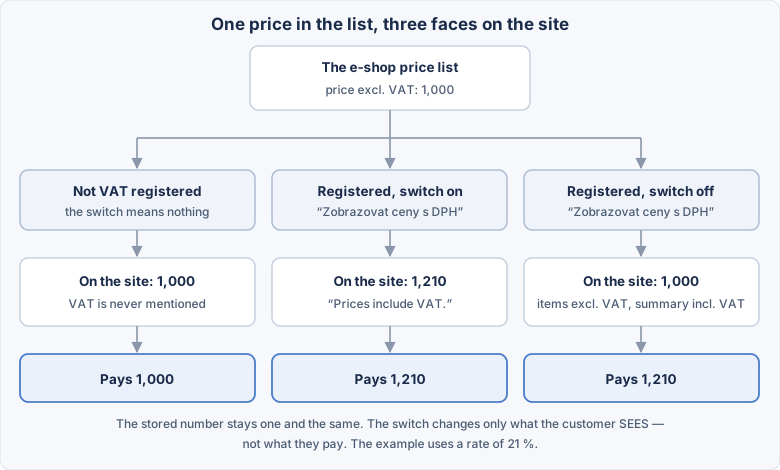
The price table therefore has two price columns:
| Column | What the system does with it |
|---|---|
| Cena bez DPH (price excl. VAT) | the only value that gets stored |
| Cena s DPH (price incl. VAT) | a helper in the browser — worked out from the set's rate and never stored |
You may type into either one, the other fills itself in. Type 1,210 into the field with VAT and Cena bez DPH becomes 1,000 — and that thousand is what gets stored. Původní cena bez DPH (the original price) works as the same kind of pair.
Step by step: entering a price from the final amount#
- Open the item and check on the DPH tab that the set has a rate. Without one the helper field has nothing to compute from and stays empty — the form says so with "Sada zatím nemá sazbu DPH." (this set has no VAT rate yet).
- Open Ceník and pick the currency, the quantity band and the group.
- Type the final amount into Cena s DPH.
- Look at what appeared in Cena bez DPH — that number is the one being stored.
- Save and check the price on the site.
The helper field is never submitted, so nothing can be saved from it
Cena s DPH is not part of the form — it is only a calculator in the browser. With no rate on the set it stays empty even after you fill the base in. It looks as if no price was entered; what is stored is always the content of Cena bez DPH.
Clearing the helper field clears the base as well
Delete the content of Cena s DPH and Cena bez DPH empties too — and a row with an empty price is not stored at all. The goods then have no price in that currency and cannot be bought.
Changing the VAT rate does not rewrite the price list
The stored bases stay as they are. Only what is derived from them changes — the amounts on the site and on documents. A new rate is therefore no reason to walk through the price lists.
Whether the customer sees the price with tax or without#
This follows the seller company card in Invoicing, not the e-shop settings:
| Seller company | What the customer sees on goods | The note in the cart and summary |
|---|---|---|
| not VAT registered | the base from the price list | none — VAT is never mentioned |
| registered, Zobrazovat ceny s DPH on | the base plus the rate | "Prices include VAT." |
| registered, Zobrazovat ceny s DPH off | the base from the price list | "Item prices are listed excluding VAT; the summary amounts include VAT." |
The switch sits on the company card — see My companies. The note appears in the mini cart, the cart and the order recapitulation; there is no label next to prices in listings or on the product detail.
The cart and order summary always shows what will be paid
The switch aims at the prices of goods in listings and on the detail. The total in the cart, in the order recapitulation and on the invoice is always the amount actually paid — for a registered seller that means with tax, whichever way the switch is set.
For a registered seller with the switch off, the summary does not match the item prices
Goods are listed at their base, but the total carries the tax — deliberately, so that the customer sees what they really pay. The note under the summary says so explicitly: "Item prices are listed excluding VAT; the summary amounts include VAT." If you sell to consumers, turn the switch on.
Rounding shows up in the total
On a single item the difference is pennies; on a larger order it grows. Check on a test order that the total on the document matches what the customer sees in the cart.
Loyalty points#
A price can specify how many points the purchase earns. Points then decide the discount level.
When a customer sees a different price than you expect#
In order:
- Is a different time snapshot in effect? Check which record is current.
- Are they in another group? A group has its own price list and its own discount.
- Do they fall in another quantity band? The price from 10 pcs differs from 9.
- Do they have a level or account discount? Those apply on top of the list price.
- Did they use a voucher?
When in doubt, walk a test order with that customer.
🔴 How discounts combine#
This is not configurable — the rules are fixed and differ per kind of discount.
| Kind of discount | How it combines |
|---|---|
| item discount × customer discount | multiplied (applied one after the other) |
| percentage vouchers | added up, capped at 100 % together |
| a voucher's fixed amount | deducted on top |
Multiplying is not adding and yields a smaller discount
An item discount of 20 % and a customer discount of 10 % do not make 30 % but 28 % — the second is computed from the price after the first. The gap grows with the size of the discounts and is usually why an administrator cannot reconstruct how the system arrived at that amount.
Percentage vouchers, by contrast, add up and cap at 100 %
Two vouchers of 60 % do not make 120 % but 100 % — that is, free goods. How many coupons a customer may apply is set in the module settings; that is the only lever you have over this.
Before launching, walk an order with a customer who has everything
A group price, a level discount, an account discount and a voucher. You will see what they actually pay — and whether anything is left in it for you.