Galleries and rotating messages#
Two screens for image content. A gallery is a set of photos with its own page; rotating messages are alternating panels, usually on the front page.
Both live under Blog.
Galleries#
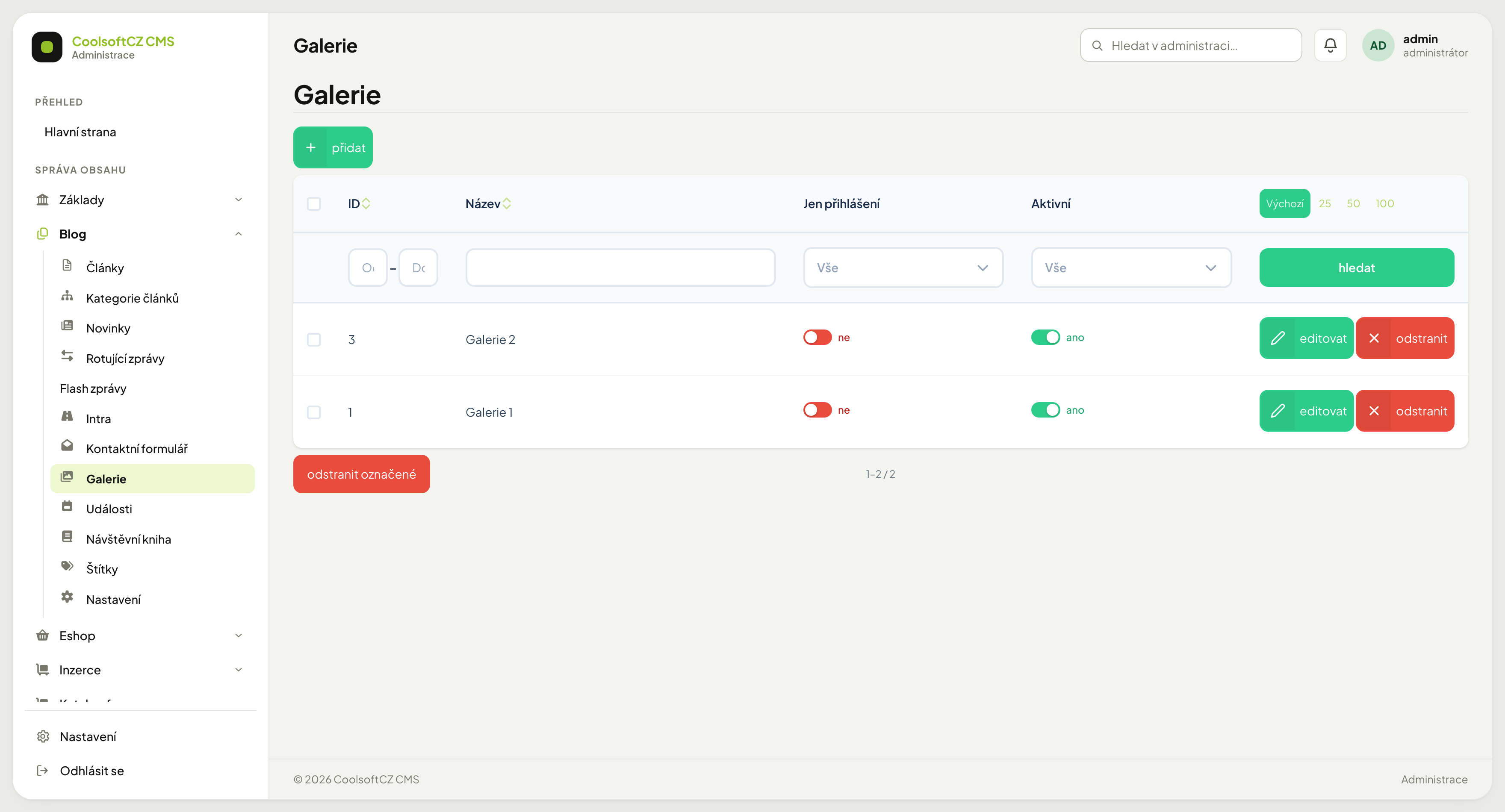
A gallery groups photos under one name — from an event, a project, a shop.
Creating a gallery#
- přidat above the list.
- Fill in the name and description.
- Upload the photos.
- Set Publikováno and turn Aktivní on.
- Save.
Uploading photos#
Photos are uploaded by dragging or by picking files. Thumbnails are generated automatically.
Shrink photos before uploading
A phone snapshot easily weighs 5 MB. The system does create thumbnails, but the original is stored too, and on a large gallery that means hundreds of megabytes and slow loading. A width of around 2000 px is plenty.
You can save even while photos are still uploading
Press Uložit (save) before all the files have uploaded and the form waits with the message Počkejte, než se dokončí nahrávání souborů — formulář se pak uloží sám. (wait until the files finish uploading; the form then saves itself). Do not close the page in the meantime.
A removed photo is deleted from the server too once you save
A photo removed from the gallery (or replaced by another) is deleted together with its file and thumbnails when you save. If you may want it again, keep your own copy.
Order and captions#
Order is changed by dragging. Each photo can carry a caption shown underneath it or when enlarged.
Signed-in visitors only#
A gallery has a Jen pro přihlášené (logged-in users only) toggle that makes it available only to signed-in users. A signed-out visitor will not even see it in the listing — nor under an article or event it is attached to.
Galleries on an article or event#
A gallery attached to an article or event is shown in their detail only when the gallery is active and its Publikováno date has passed (or is empty). A disabled or scheduled gallery is not shown there.
This is not security
It exists to separate content, not to protect sensitive material. Anyone with an account gets in.
Comments and ratings#
A gallery can carry a discussion and ratings, just like an article. Moderation is central — see Comments.
Rotating messages#
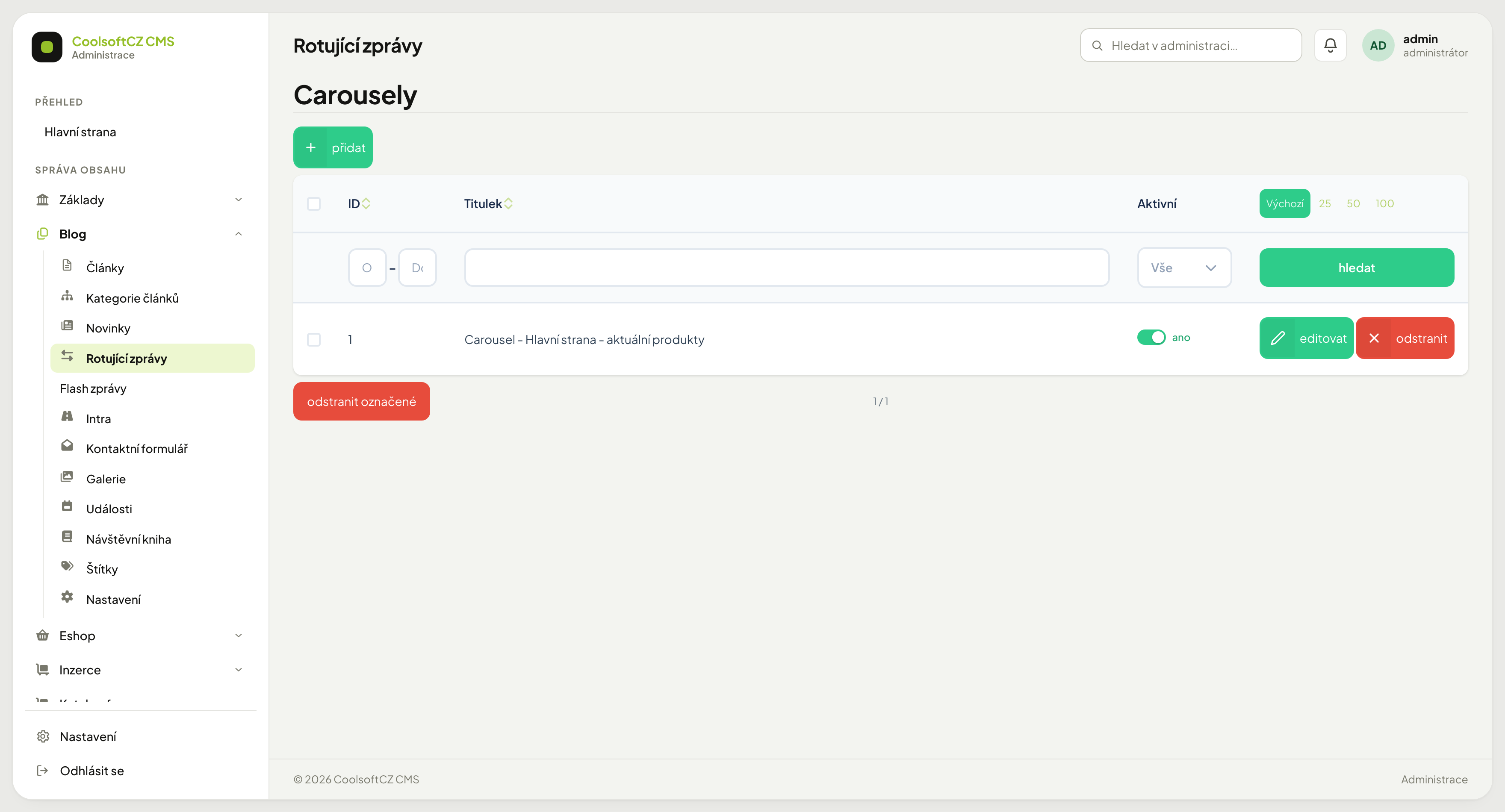
Panels that alternate in one place — usually a large band on the front page with an image, a headline and a button.
A panel has no separate fields for image, headline, text and link
This is not a form like an article's. Each panel is a single piece of code in a text editor, per language — you build the image, headline, text and button link yourself inside it (inserting the image, formatting, the link).
Publikováno and Aktivní apply to the whole group of panels, not one
Rotating messages form a group (a title, a publication date, one switch) containing any number of panels. Switching Aktivní off removes ALL the group's panels from the rotation at once — you cannot switch off a single panel on its own.
Creating one#
- přidat above the list.
- Fill in the title for each language.
- In the panel row, write the panel code for each language in the text editor — build the image, headline, text and link directly inside it. Add another panel with the button below the table.
- Set Publikováno and turn on the activation switch in the header.
- Save.
What to watch out for#
Every image must have the same aspect ratio
The panels alternate in one place. If one is portrait and another landscape, the page jumps at every switch. Prepare the images at the same size beforehand.
Three to five panels is the ceiling
Visitors usually see only the first before scrolling on. Almost nobody reads what is on the fifth — the important message belongs on the first.
Order#
It follows the order of the rows in the panel table.
Dragging does not reorder the panels
Unlike photos in a gallery, dragging does not work here. To swap two panels, delete them and add them again in the order you want.
Switching off#
Switching Aktivní off removes ALL the group's panels from the rotation at once, and they stay stored. You cannot switch off a single panel on its own — you can only delete it.
Showing it on the site#
Where rotating messages appear on the site is decided by the site template — the template developer places a specific group by its ID, optionally with the number of panels visible at once. The place is not chosen in the administration.
On the site the group appears only when it is active and its Publikováno date has passed (or is empty). The panels shown are those that have code in the language of the page being viewed; a panel without code in that language is skipped (no other language is used instead). With no panel at all nothing is drawn. The arrows and dots for switching appear only when there are more panels than fit at once.