Settings#
Options that belong to no module — how the site presents itself, who runs it, and how the administration itself behaves.
Open them with the Nastavení link at the very bottom of the left column. There is no other way in: the menu has no Nastavení item.
Tabs#
The section is split into screens, and each has its own address, so you can bookmark it. The bar at the top is divided into four groups — Web (Website), Administrace (Administration), Napojení (Integrations) and Systém (System). A group with several screens is a drop-down menu: it opens on click or on hover and can be operated with the keyboard. Next to the group name you see the screen you are on, for example Web · Vzhled webu. A group with a single screen is a plain link.
| Group | Screen | What it changes |
|---|---|---|
| Web | Nastavení webu (website settings) | registration and privacy, sending email, SMTP, comments and ratings, private messages, the cron token |
| Identita webu (site identity) | name, logo, favicon, sharing preview | |
| Vzhled webu (site appearance) | the site template and colour variant (visible only with the permission) | |
| Režim údržby (maintenance mode) | temporarily closes the site to visitors with a message (visible only with the permission) | |
| Provozovatel (operator) | who runs the site and how to reach them | |
| Kredity za akce (credits for actions) | credits for registration, referrals (affiliate), a complete profile, adverts, company profiles and posts (visible only with the permission) | |
| Administrace | Nastavení administrace (administration settings) | rows per page in lists, the filter layout and the default administration look; see below |
| Napojení | Napojení třetích stran (third-party connections) | reCAPTCHA, Google Analytics, Tag Manager, Search Console, Maps, Meta Pixel, Microsoft Clarity, TikTok Pixel, LinkedIn Insight Tag |
| Aplikace s přístupem k Api (applications with Api access) | keys of mobile apps and partner systems, their limits and allowed roles (administrator only) | |
| Systém | Varianty obrázků (image variants) | which resized copies are made from uploaded images (visible only with the permission) |
| Cron | the scheduler of automatic tasks (visible only with the permission) | |
| Nastavení e-mailových adres (email address settings) | SMTP accounts by sender address (visible only with the permission) |
Screens you have no permission for are not shown in the menu. A group left with no screen disappears entirely.
Custom code no longer has a tab here
Inserting your own CSS, JavaScript, and third-party snippets has its own item in the administration menu, Web → Stránky → Vlastní kód; see Custom code.
Module settings are elsewhere
The e-shop, blog, classifieds, catalogue, stock, and invoicing each have their own Nastavení inside their own part of the menu. They did not move here — they are options of one agenda, not of the whole site.
Quick links on the home page are set in the widget
Which links the Quick links widget shows is chosen by every user in the widget's settings on the home page; see Home page and widgets.
Nastavení webu#
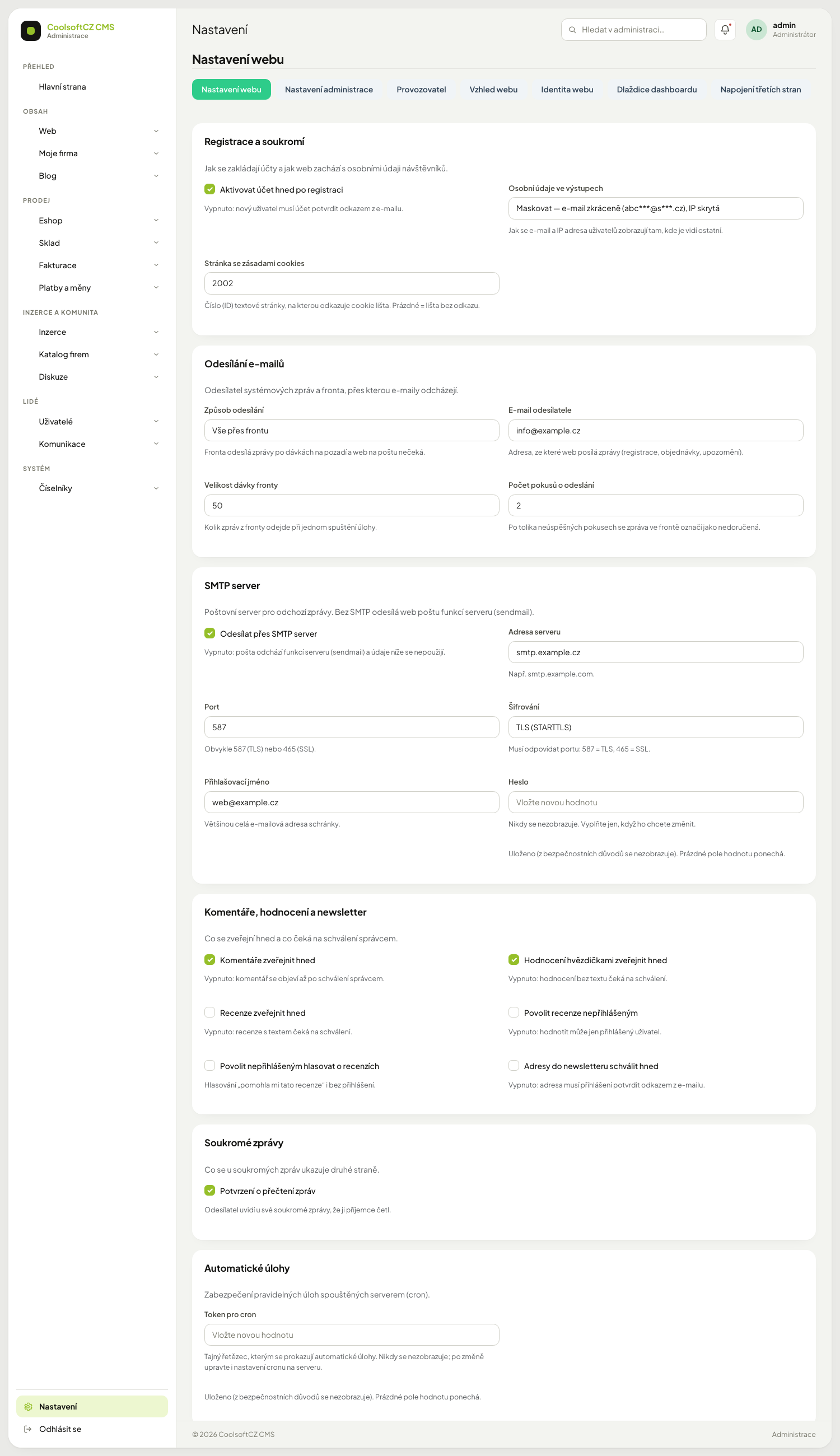
Options arranged into sections. Every field has a label and a short explanation below it, so you do not need to know technical names. Checkboxes are on/off options and number fields accept whole numbers only.
| Section | What you set in it |
|---|---|
| Registrace a soukromí | whether an account is activated right after registration, the grace period before an account is closed, how users' email and IP address are shown to others, which page is the cookie policy |
| Odesílání e-mailů | the site address used in links, the sending method, the sender address and name, the queue batch size, the number of delivery attempts, how long to keep sent messages |
| SMTP server | the fallback SMTP (further accounts by sender address are in Nastavení e-mailových adres): whether mail goes through SMTP, server address, port, encryption, username and password |
| Komentáře, hodnocení a newsletter | what is published at once and what waits for approval |
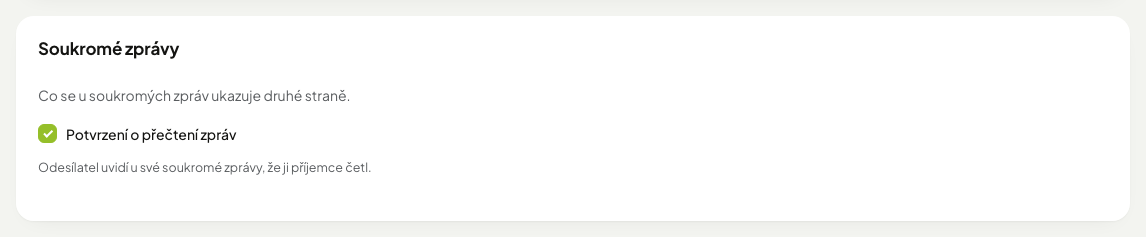
| Soukromé zprávy | whether the sender sees a "Přečteno" (read) badge on their message, see Private messages |
| Automatické úlohy | the token that the server's automatic jobs (cron) identify themselves with; how long to keep error dumps, read notifications and payment gateway communication, and how large a log may grow |
| Nahrávání souborů | limits of unfinished uploads of photos and attachments through forms on the website (adverts, discussion, complaints) |
| Ostatní | options that do not have a label yet |
A few options offer a choice instead of free text:
| Option | Choices |
|---|---|
| Způsob odesílání (sending method) | send at once · everything through the queue · through the queue, priority messages at once |
| Osobní údaje ve výstupech (personal data in output) | mask (email shortened, IP hidden) · show everything · hide (email and IP empty) |
| Šifrování (SMTP encryption) | none · TLS (STARTTLS) · SSL |
Periods and limits#
Several number options control how long the system keeps something and how many times it retries. An empty field means the default value.
| Section | Option | Default | What it does |
|---|---|---|---|
| Registrace a soukromí | Lhůta před zrušením účtu (dny) (grace period before account deletion) | 7 | how many days after a user's request to close the account the account is anonymised. Until then the user can cancel the closure. Allowed range 1–365 days |
| Odesílání e-mailů | Počet pokusů o odeslání (sending attempts) | 5 | after this many failed attempts a message in the queue is stopped and the administrator gets a notification. Between attempts the system waits 1 min, 5 min, 30 min, 2 h and then 24 h |
| Odesílání e-mailů | Uchovat odeslané zprávy (dny) (keep sent messages) | 30 | the daily job deletes older sent and stopped messages from the email queue. Newsletters are kept |
| Automatické úlohy | Uchovat výpisy chyb (dny) (keep error dumps) | 30 | the daily job deletes older error dumps in the log/ folder |
| Automatické úlohy | Uchovat přečtené notifikace (dny) (keep read notifications) | 90 | the daily job deletes older read notifications; unread ones stay. 1 to 3650 days are accepted |
| Automatické úlohy | Uchovat komunikaci s platební bránou (dny) (keep payment gateway communication) | 365 | the daily job deletes older records of the payment Komunikace s bránou (communication with the gateway) tab; the payments and transactions themselves stay. 1 to 3650 days are accepted |
| Automatické úlohy | Největší velikost logu (MB) (maximum log size) | 50 | the job moves a larger .log file aside as .log.1 and starts a new one; three older versions are kept |
The clean-up is done by the server's scheduled jobs
Deleting old mail, error dumps, notifications, payment gateway communication and anonymising closed accounts runs once a day as an automatic job. The administrator has to have it scheduled on the server — the list of jobs is in the developer chapter Scheduled jobs.
Site address in links#
The Adresa webu v odkazech (site address in links) field in the Odesílání e-mailů section sets the address from which links are built in emails (activation, password reset, adverts, orders), in sitemaps, in the product feed and in the tags used for sharing on social networks. It is used regardless of the address under which someone opened the site.
- Enter the full address in the form
https://hostorhttps://host/path, for examplehttps://www.example.com. Bothhttp://andhttps://are accepted; the address must not contain?,#or credentials. - A trailing slash is removed when you save.
- An empty field means the address the visitor came through is used. For a site behind several domains or with a test address it is better to fill the field in, so that a wrong address does not end up in emails.
- An invalid address is not saved and an error is shown at the field.
File uploads#
The Nahrávání souborů section limits visitors' unfinished uploads, that is files that are already on the server while the form has not been submitted yet. An empty field means the default value.
| Option | Default | What it does |
|---|---|---|
| Rozpracované formuláře s nahráváním (na návštěvníka) (unfinished upload forms per visitor) | 20 | how many forms with an unfinished upload one visitor keeps at once (for example in several browser tabs). Above the limit the oldest unfinished upload is discarded. 1 to 200 are accepted |
| Nahrané soubory čekající na uložení (MB na návštěvníka) (uploaded files waiting to be saved) | 300 | total size of files the visitor has uploaded but not submitted yet. Above the limit the next file is refused. 1 to 10240 are accepted |
Procedure: change the site settings#
- Open Nastavení → Nastavení webu.
- Find the section and the field. Read the explanation below it.
- Change the value. A checkbox is toggled with a click, a choice with the drop-down.
- Click Uložit at the bottom. All values on the screen are saved at once: if the save fails, none of them changes.
- Check on the site that the change took effect.
Copy the old value down before changing it
There is no undo. A note gets you back faster than digging through a backup.
Secret fields#
The SMTP password and the cron token are secret: after saving they are not shown and the field stays empty. Below it, it says whether the value is stored or not filled in.
| I want | How |
|---|---|
| keep the value as it is | leave the field empty and save |
| change the value | enter a new one and save |
You cannot delete a stored secret value from here
An empty field means "no change", not "delete". If you need to retire the SMTP password, switch off Odesílat přes SMTP server (send through an SMTP server) — the password is then not used.
After changing the cron token, change the server too
Automatic jobs identify themselves with exactly this token. If you change it only here, the jobs scheduled on the server keep using the old one and stop running — nothing reports it. Always agree the change with the server administrator.
Aktivovat účet hned po registraci switched off = the account waits for the email
A new user cannot sign in until they click the link in the email. After registering they get only the Account activation email; New registration is sent only with the option on. If emails from the site do not arrive, nobody can register. Before switching it off check that sending email works.
The Ostatní section and values without validation
Ostatní holds options the system does not describe yet. Almost anything can be typed into their fields and a wrong value does not produce a message on save — it shows up as something not working, often somewhere else and later. Change them only when the administrator tells you to.
Passwords to external services do not belong here
Payment gateways have their own screen, and the keys to Google services (maps, measurement, reCAPTCHA) are in Third-party connections, where they are hidden. Do not copy them into the general settings.
Google services are no longer here
The measurement ID, Tag Manager, Search Console verification and the Google Maps key used to be entered in the site settings. They moved to a card in Third-party connections; there is no Služby Google section here any more.
Some keys are deliberately absent from the list#
Options that have their own tab are hidden from this list so they cannot be changed in two places and drift apart:
- administration theme, rows per page and filter layout → Nastavení administrace
- site template and colour variant (
theme.frontend*) → Vzhled webu - operator details (
web.operator.*) → Provozovatel - site name, logo, favicon, sharing image (
site.name,site.*) → Identita webu
A few keys are dead and read only by old code
They are left over from the previous generation of the system and are hidden too. Were they to appear in the list, changing them would do nothing.
Nastavení administrace#
Options that concern the administration only — they have no effect on the site. They apply to all users. Open the screen in the Administrace group.
| Option | What it does |
|---|---|
| Počet záznamů na stránku (records per page) | how many rows tables in the administration show before paging |
| Zobrazení filtrů v přehledech (filter layout in lists) | where filters and sorting sit in every list; see the table below |
| administration template | the default look of the administration, picked from a grid of previews |
The choices of Zobrazení filtrů v přehledech (each also has a short description in the form):
| Choice | How lists look |
|---|---|
| Filtry pod názvy sloupců (původní) (filters under column headings — original) — the default | a row of search fields right under the headings, sorting with arrows at each column |
| Samostatný panel vyhledávání (separate search panel) | filters and sorting in a panel above the table, opened with the Vyhledávání a řazení (search and sort) button; the button shows the number of active filters, which stay visible even with the panel closed |
| Filtry ve sloupcích, řazení klikem na nadpis (filters in columns, sort by clicking the heading) | search fields under the column headings; click a heading to sort, click again to reverse the direction |
Lists work the same in all three choices; only the layout changes. See Search and filters.
The administration template is picked with the same picker as the site appearance: from a grid of cards with previews. The choices are Administrace CoolsoftCZ and Administrace CoolCMS – facelift — both have the same functions and differ only in their look. The template currently in use is marked právě nastaveno (currently active).
This is the default look; everyone can switch their own
The template chosen here applies to all users. Anyone who wants a different look just for themselves switches it in the top bar with the Vzhled administrace (administration theme) switcher; see Finding your way around. Such a choice applies only in their browser.
Set rows per page to 25–50
More loads slowly; fewer means paging all the time. The minimum is 1, otherwise the form will not save.
Procedure: change the administration settings#
- Open Nastavení at the bottom of the left column and click Administrace in the bar.
- Adjust Počet záznamů na stránku.
- Choose Zobrazení filtrů v přehledech.
- Click the card of an administration template. A window with its colour variants opens (Základní barvy — base colours — and others).
- Click the variant you want; the window closes by itself and the card is outlined.
- Press Uložit (save).
Procedure: change a value on another tab#
- Open Nastavení at the bottom of the left column.
- In the bar, pick the group and in it the screen the option belongs to (see the table above).
- Copy the current value down before you overwrite it.
- Change the value and press Uložit.
- Check on the site that the change took effect.
A change saved in the administration shows at once, otherwise within five minutes
The system remembers the settings briefly, but saving from the administration invalidates that memory by itself. If the administrator edited a value directly in the database, it shows only after five minutes. If you still do not see the change, ask the administrator to clear the cache.
A green message means saved, not verified
The system confirms that it wrote the value down — not that the value makes sense. A key to an external service proves itself only by that service starting (or not starting) to work.