Company presentation#
The content the company introduces itself with on the site: texts, photos, free-form HTML sections, the parameter strip and the team. It all lives on a single screen — Moje firma → Firmy, edit the company — under the tabs Prezentace (presentation), Média (media), Obsah (content), Parametry (parameters) and Tým (team).
The rest of that same screen (invoicing defaults, working hours, toggles) is covered by Company profile.
Only the company marked Prezentovaná is visible on the site
Everything on this page reaches the site through the one company that has the Prezentovaná (presented) column switched on in the Firmy list — and there is always exactly one. Fill the gallery and the blocks in on a different company and nothing appears on the site, with no notice anywhere.
Prezentace (Presentation)#
The company texts. They are filled in per language — language pills at the top, each with an Aktivní překlad (active translation) checkbox that switches the language on.
| Field | Purpose |
|---|---|
| Aktivní překlad (active translation) | switches the language on |
| Titulek (heading) | heading of the presentation |
| Slogan (slogan) | a short line under the heading, in the site's hero block |
| Anotace (annotation) | a few lines of summary |
| Popis (description) | longer text; has a full formatting editor |
A language left switched off means an empty site in that language
Without Aktivní překlad ticked, that language's texts are not stored as usable and a visitor in that language sees an empty hero block. Check the box on every language pill, not just the one you typed in.
Média (Media)#
Two separate things: Logo and Galerie (gallery).
Logo is a single image, uploaded with the ordinary file picker and removed with Odebrat obrázek (remove image). It is used in the site header and footer.
Galerie is a drag-and-drop uploader: drop files onto the Přetáhněte soubory sem (drag files here) area, or pick them through the vyberte ze zařízení (select from device) link. Reorder by dragging the handle, remove an item with the cross; the first item carries the Hlavní (main) badge.
| Gallery property | Value |
|---|---|
| files at most | 20 |
| largest file | 50 MB |
| allowed formats | JPEG, PNG, GIF, WebP + MP4 and QuickTime (MOV) video |
The hint under the drop area lists exactly the formats and the size limit the gallery really accepts.
You can save even while files are still uploading
Press Uložit (save) before all the files have finished uploading and the form waits with the message Počkejte, než se dokončí nahrávání souborů — formulář se pak uloží sám. (wait until the files finish uploading; the form then saves itself). Do not close the page in the meantime; once the upload finishes, it saves on its own.
A removed image is deleted from the server too once you save
An item removed with the cross (or replaced by another) is deleted together with its file when the form is saved — it is not kept anywhere. That holds for the last image too, after which the gallery is empty. If you may want the photo again, keep your own copy.
The order of the photos decides where they end up#
The gallery is not just an album — a photo's position decides where on the site it appears. The theme reaches for specific positions.
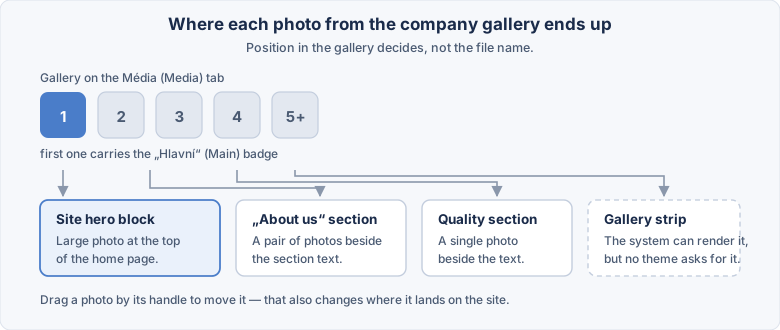
| Position in the gallery | Where the photo ends up |
|---|---|
| 1st | the company's main photo — the large image in the site's hero block |
| 2nd and 3rd | the pair of photos beside the "About us" section |
| 4th | the photo beside the quality / focus section |
| 5th and further | the gallery strip |
Dragging a photo to first place changes the opening image of the whole site
The first gallery item is also the company's main photo — there is no separate field for it. Add a photo, pull it up by accident, and you have replaced the site's opening image without touching anything that looks like it. Check the home page after every change to the gallery.
No theme currently renders the fifth photo onwards
The system can draw the gallery strip, but not one of the deployed themes asks for it. Photos from the fifth on are therefore stored and shown nowhere. Before you upload twenty of them, check with your site administrator whether your theme can display them.
Obsah (Content)#
Free-form content sections: pieces of HTML placed straight into the page. They are used for blocks like "About our company" or "Why us", where the ordinary fields are not enough.
The sections are in a list on the left, the detail of the selected section on the right. They are added with Přidat sekci (add section) below the list, removed with the trash icon in the detail and reordered by dragging the handle in the list (or with the arrows in the detail). The heading and content in other languages are edited after switching Jazyk obsahu (content language) in the detail. A new company has no sections — the list is empty. See List and item detail.
| Field | Purpose |
|---|---|
| Kotva pro šablonu (template anchor) | optional one-word label, for example about or quality |
| Veřejná (public) | the section is shown on the site |
| Nadpis (heading) | heading of the section; per language |
| HTML obsah (HTML content) | the section's own markup; per language |
The HTML content is placed into the page without any processing
The administration neither checks nor edits the markup — whatever you paste is what the visitor is sent. Foreign HTML (from an email, another site, a banner generator) can carry a script that steals visitors' logins or breaks the whole page. Paste only markup you understand, or have it checked.
The anchor decides whether the section lands in its designated place or just in a row
A theme can reach directly for a section by its anchor — today's themes expect the
anchors about and quality. A section without an anchor cannot reach such a
place; it only shows up where the theme prints all the sections one after another.
Rewrite the anchor of a section that was already live and it disappears from the
site with no message.
Write the anchor in lower-case ASCII
It is a technical label for the theme, not a heading for readers. The heading belongs in the Nadpis field.
Parametry (Parameters)#
Short Popisek (label) — Hodnota (value) pairs, printed on the site as a strip of company facts ("Years in business — 25", "Jobs completed — 300").
Like the sections, the parameters are in a list on the left and a detail on the right. They are added with Přidat parametr (add parameter), removed with the trash icon in the detail and reordered by dragging in the list.
| Field | Purpose |
|---|---|
| Ikona (icon) | the name of the icon the theme should draw beside the parameter |
| Veřejný (public) | the parameter is shown on the site |
| Popisek (label) | the text under the value; per language |
| Hodnota (value) | a number or short piece of data; per language |
The value is a short field, the label a long one
Hodnota holds 100 characters, Popisek 255. The parameter strip is designed for figures and two or three words — longer text wraps across the full width and breaks the row.
Tým (Team)#
The people shown on the site as the company's team. On the left is the list of members (name and job role), on the right the profile of the selected member. The number of members shows on the tab, for example Tým 8 (Team 8).
| Field | Purpose |
|---|---|
| Portrét (portrait) | the member's photo |
| Jméno (name) | first and last name; required — without it the company is not saved and the member with the error opens by itself |
| Veřejný (public) | the member is shown on the site |
| Pracovní zařazení (job role) | "Head of installations"; per language |
| Krátký text (short text) | a few sentences about the person; per language |
| Doplňující informace (additional details) | specialization, languages, contact — whatever is relevant for the member; left empty, it is not shown on the site; per language |
The team has no screen of its own
There is no "Tým" item in the Moje firma menu — members are part of the company and are saved together with it. Looking for them elsewhere is a waste of time.
The photo is uploaded only when the whole form is saved
Unlike the gallery, a portrait is not sent as soon as you pick it. Close the page before saving and the chosen file is gone, leaving the row without a photo.
Procedure: edit the team#
- On the Tým tab click the member you want to edit in the list. Add a new one with the Přidat člena týmu (add team member) button below the list.
- Fill in the fields in the detail on the right (see the table above). Texts in other languages are edited after switching Jazyk obsahu (content language) in the detail.
- Change the order by dragging the member by the cross-arrows handle in the list, or with the ↑ ↓ arrows in the detail.
- Remove a member with the trash icon in their detail.
- Press Použít (apply) or Uložit (save). Until then the changes exist only on screen.
Postup: fill in the presentation of a new company#
- Open Moje firma → Firmy and edit the company.
- On the Prezentace tab fill in Titulek, Slogan and Anotace, and tick Aktivní překlad for every language.
- On the Média tab upload the Logo.
- On the same tab upload photos into the Galerie in the order you want them on the site — first is the hero, second and third go to "About us", fourth to the quality section.
- On the Obsah tab add a section with the anchor
aboutand fill in Nadpis and HTML obsah. - On the Parametry tab add three or four figures for the strip.
- On the Tým tab add the members with their portraits.
- Press Uložit (save) and walk through the site's home page.
It saves in three steps and a failure in one does not undo the earlier ones
Sections, parameters and the team are saved separately, after the company itself. If one of them fails, the administration reports Uložení firmy se nezdařilo (saving the company failed) — but the company itself and the earlier parts have been saved. After that message, reopen the form and check what survived before you start retyping.
Related#
- Company profile — the rest of the same screen and the Prezentovaná toggle.
- Services and price list — the price list printed on the site next to all this.
- References — samples of work; they have their own gallery and their own flags.
- Ratings — client reviews inside the company presentation.