Third-party connections#
Services the site uses from other companies: protecting forms from bots (Google reCAPTCHA), measuring traffic and ads (Google Analytics and Tag Manager, Microsoft Clarity, Meta Pixel, TikTok Pixel, LinkedIn Insight Tag), verifying the site for the search engine (Google Search Console) and maps (Google Maps).
Find them under Nastavení → Napojení třetích stran (the Nastavení link at the bottom of the left column). Only people with permission for this screen see it — by default administrators, because keys are stored here.
What it looks like#
Below the heading is a list of cards, one per service. A card is collapsed and its header shows the service name and a badge, Zapnuto (green, on) or Vypnuto (grey, off). Click it to expand: a short description and an on / off switch at the top, the fields the service needs below, and a Uložit (save) button at the bottom.
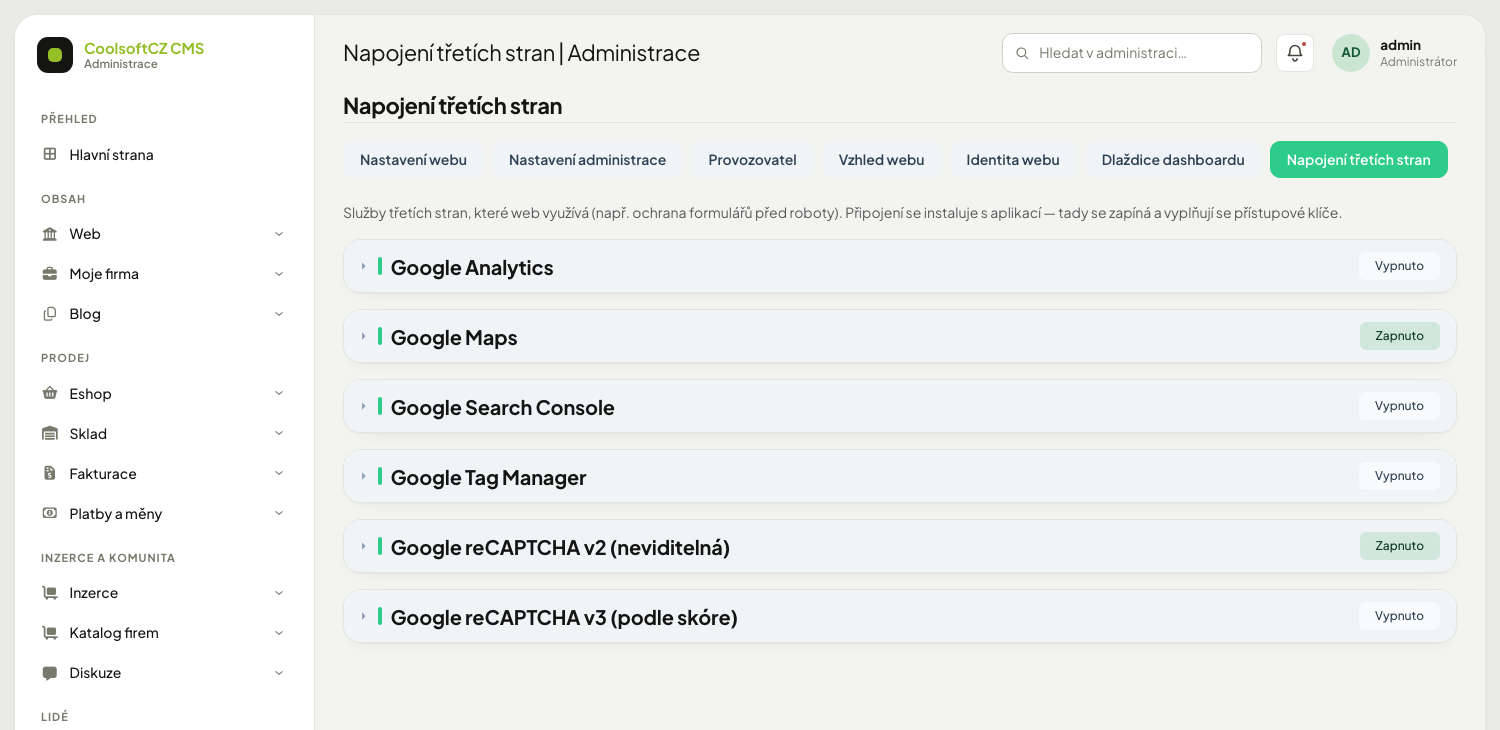
| Card | What to fill in | What it does on the site |
|---|---|---|
| Google reCAPTCHA v2 (invisible) | site key, secret key | form protection; the visitor clicks nothing |
| Google reCAPTCHA v3 (score based) | site key, secret key, minimum score | form protection with no challenge at all; Google rates each submission 0 to 1 |
| Google Analytics | measurement ID (G-XXXXXXXXXX) |
traffic measurement |
| Google Tag Manager | container ID (GTM-XXXXXXX) |
manager for measurement and marketing tags |
| Google Search Console | verification code | proves site ownership to Google |
| Meta (Facebook) Pixel | pixel ID (digits only) | measures ads and conversions on Facebook and Instagram |
| Microsoft Clarity | project ID (lowercase letters and digits) | click maps and recordings of visitor behaviour |
| TikTok Pixel | pixel ID (uppercase letters and digits) | measures ads and conversions on TikTok |
| LinkedIn Insight Tag | Partner ID (digits only) | measures ads and conversions on LinkedIn |
| Google Maps | Klíč API (API key, required), Map ID (optional), Klíč pro server (server key, optional, secret) | maps on the site (contact, adverts, companies) and looking up coordinates from an address |
Cards cannot be added or deleted here
The list of services comes with the system version. If a service you need is missing, it cannot be added from the administration — ask the system administrator. A card whose type this version does not know is listed with a warning and cannot be edited.
Procedure: turn on form protection (reCAPTCHA)#
- In the Google reCAPTCHA console create a site and pick the key type. The type must match the card: "v2 Invisible" keys belong on the v2 card, "v3" keys on the v3 card. Keys of one version do not work in the other.
- In the console check the site's list of domains — it must contain the address the
site runs on (say,
www.yoursite.com). On an address outside the list forms are rejected. - In the administration open Nastavení → Napojení třetích stran and expand the card of the chosen version.
- Enter the site key (public) and the secret key. For v3 you can change the minimum score; empty means 0.5, which is Google's recommendation. A higher number is stricter.
- Switch it on and click Uložit. The page returns with the card open and a saved message.
- On the site open any form (contact or forgotten password) and submit it. If that works, protection works.
Turning one version on turns the other one off by itself. The reCAPTCHA cards are alternatives, only one can run; after saving the system tells you with a message "Zapnutím bylo vypnuto: …" (turning it on switched off: …).
The switch happens in one go: turning one card on and the other off is saved either both or not at all. If the save fails, the message "Přepnutí napojení se nezdařilo, nic se nezměnilo" (switching failed, nothing changed) appears and the version that was running before keeps running. You never end up with both on, or both off.
Protection covers these forms: registration, forgotten password, contact, posting an advert (classifieds and company directory), newsletter, a discussion post, a complaint, comments and ratings.
Without both keys protection does not run, even when the card is on
Keys are read only from this screen. If only one is filled in, or none, forms are sent unprotected. This mostly happens on a fresh installation where the v2 card may be on and empty. The system will not let you save an enabled card without keys (see Required fields), but nobody notices a card that is already saved empty — nothing is being checked. After switching it on always try a form.
A failed check shows the visitor a message
When Google rejects the submission (for v3 a score below the threshold) or the token is missing, the form is not sent and the visitor sees "Serveru se nepodařilo ověřit, že jste člověk. Prosím, zkuste odeslat formulář ještě jednou." (the server could not verify you are human; please try again). Set the minimum score too high and real people start getting it. If in trouble, lower it and watch the score distribution in the Google console.
reCAPTCHA can be switched off on the server by force
The administrator can turn it off in the server configuration (typically on a development computer, where Google does not work). The card then shows a yellow notice that the Zapnuto switch has no effect on this server.
Procedure: turn on measurement#
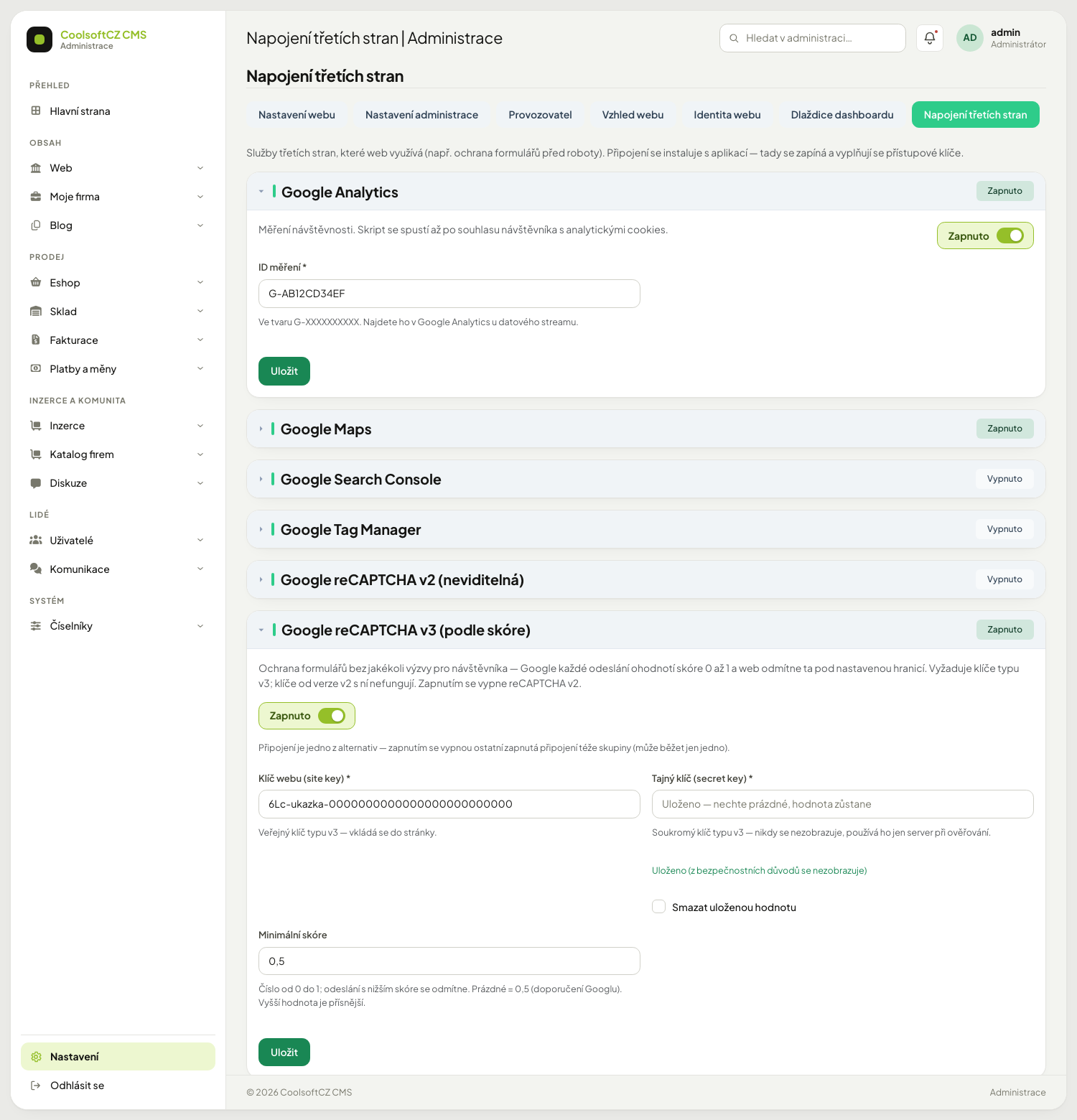
- Expand the card of the service (Google Analytics, Tag Manager or Search Console).
- Enter the value from Google (measurement ID, container ID, verification code, API
key). The Search Console code is just the value of the
contentattribute of thegoogle-site-verificationtag, without the surrounding HTML. Maps have their own procedure below. - Switch it on and click Uložit.
- Display a page of the site and check the result (see the table below).
| Service | What shows up | When it starts |
|---|---|---|
| Analytics | the measurement script | only after the visitor allows analytics cookies in the cookie bar |
| Tag Manager | the tag manager script | only after consent to analytics or marketing cookies |
| Search Console | a verification tag in the head of every page | immediately |
| Meta Pixel, TikTok Pixel, LinkedIn Insight Tag | an advertising measurement script | only after consent to marketing cookies |
| Microsoft Clarity | the behaviour recording script | only after consent to analytics cookies |
Off or empty service = nothing is rendered
Without being on and having a value nothing is put in the page. This holds for maps too — see below.
Measurement and advertising pixels#
The Meta Pixel, Microsoft Clarity, TikTok Pixel and LinkedIn Insight Tag cards have one field each: the public ID from the service's account. After installation they are off.
| Card | Field | ID format | Where to find it |
|---|---|---|---|
| Meta Pixel | pixel ID | digits only, 8 to 20 | Meta Events Manager, at your pixel |
| Microsoft Clarity | project ID | lowercase letters and digits, 8 to 12 characters | Clarity, project settings |
| TikTok Pixel | pixel ID | uppercase letters and digits, 10 to 32 characters | TikTok Ads Manager, Events, Web Events |
| LinkedIn Insight Tag | Partner ID | digits only, 4 to 12 | LinkedIn Campaign Manager, Analyze, Insight Tag |
Google Analytics (G- and 4 to 20 uppercase letters or digits) and Google Tag
Manager (GTM- and 4 to 12 uppercase letters or digits) have the same format check.
Procedure: turn on a pixel#
- In the service's account (Meta, Clarity, TikTok, LinkedIn) copy the ID.
- In the administration open Nastavení → Napojení třetích stran and expand the service's card.
- Enter the ID and switch Zapnuto (on). Click Uložit.
- If the ID does not have the expected format, the form is not saved and the field shows "Zadejte ID ve správném tvaru (viz nápověda u pole)." (enter the ID in the correct format, see the hint at the field). Correct it; most often a different number from the service account was copied.
- Open the site in a private window, allow the matching cookie category in the cookie bar and check in the service's tools that the first visit arrived.
Cookie consent#
The scripts do not start by themselves. The template puts them into the page, but the browser runs them only after the visitor allows the category in the cookie bar:
| Service | Cookie category |
|---|---|
| Meta Pixel, TikTok Pixel, LinkedIn Insight Tag | marketing |
| Microsoft Clarity | analytics |
If the visitor withdraws consent for a category, the cookie bar also deletes the cookies of
these services (for example _fbp, _ttp, _clck, bcookie).
If the category is not allowed, nothing is measured
A visitor who allows nothing in the cookie bar is not recorded in Meta, TikTok, LinkedIn or Clarity. The numbers in the advertising accounts are therefore lower than the real traffic. Nothing reports it; that is the point of consent.
A custom theme must contain the snippet
The measurement code is inserted by the analytics.latte file in the themes shipped
with the CMS. If a custom theme with its own head was made for the site without it, the
card is on but nothing appears on the page. Ask the theme's author.
Maps and address lookup#
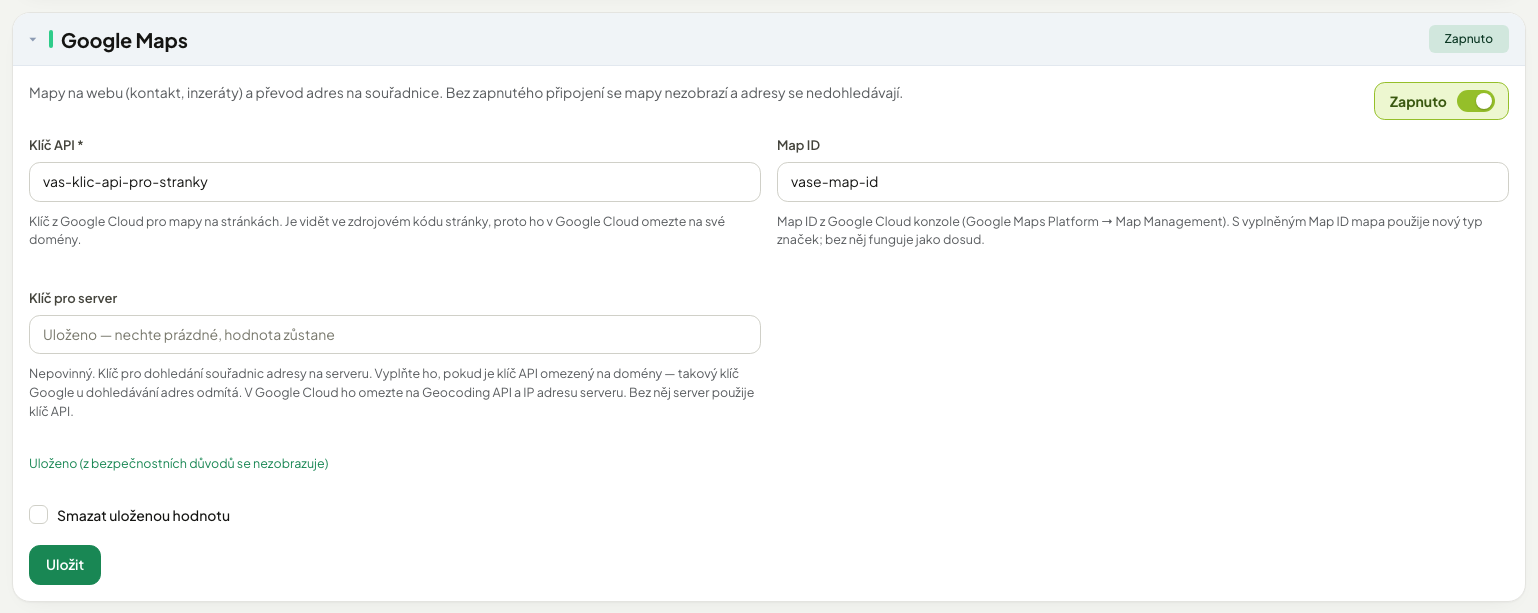
The Google Maps card has three fields and two separate jobs:
| Field | Required | Where it is used | Does a visitor see it? |
|---|---|---|---|
| Klíč API (API key) | yes (on an enabled card) | the maps on the site's pages | yes — it is in the page source |
| Map ID | no | the dynamic map: the newer marker type | yes (it is not secret) |
| Klíč pro server (server key) | no | looking up coordinates from an address on the server | no — a secret field, never sent to the browser |
What the site shows is decided by the map component's variant:
| Variant | What it looks like | Which API it uses |
|---|---|---|
| Embedded map (default) | a map in a frame with the link Otevřít v Google Mapách (Open in Google Maps) below it | Maps Embed API; it does not load the Maps JavaScript API |
| Dynamic map (only where a template explicitly chooses it) | an interactive map with a marker and a bubble with the name | Maps JavaScript API; with Map ID filled in, the newer marker type |
Every place where the site merely shows a single location — the Kontakt page, the advert and company-profile detail, the home page of some themes — uses the default embedded map.
Prices are Google's price list
According to Google's price list the embedded map is free; the dynamic map has a monthly free limit above which you pay. The current terms are in the Google Maps Platform price list — the manual does not state numbers because they change.
Why two keys#
A single key cannot be restricted both the way the pages need and the way the server needs:
- The API key is visible to anyone who views the page source, so you restrict it to your domains (restriction by referring site, HTTP referrers).
- Address lookup calls Google from the server. The Geocoding web service rejects a key restricted to domains ("API keys with referer restrictions cannot be used with this API"), because no referring site comes from a server. The server therefore needs its own key — the Klíč pro server — restricted to the server's IP address.
The server key is optional. If you do not fill it in, the server uses the API key; that works only when the API key is not restricted to domains.
Procedure: set up maps#
- In the Google Cloud console choose (or create) a project and enable in it the Maps Embed API (for embedded maps) and the Geocoding API (for address lookup). For the dynamic map enable the Maps JavaScript API too.
- Create the first key for the pages. In its restrictions choose Websites and list the domains of your site; in the API restriction keep only those the pages use (the Maps Embed API, possibly the Maps JavaScript API).
- If you want addresses looked up, create a second key for the server. In its restrictions choose IP addresses and add the server's IP address on which the site runs (see the note below); in the API restriction choose only the Geocoding API.
- In the administration open Nastavení → Napojení třetích stran and expand the Google Maps card.
- Paste the first key into Klíč API. If you want the newer markers on the dynamic map, fill in Map ID (Google Cloud console → Google Maps Platform → Map Management).
- Paste the second key into Klíč pro server. The field is secret: after saving it will be empty and below it you only see whether a value is stored, see Secret fields.
- Switch Zapnuto (on) and click Uložit (save).
- Open the Kontakt page on the site (if the operator has filled in the coordinates, see Operator) or an advert detail with a location. A map should appear with the link Otevřít v Google Mapách below it.
- Check address lookup on a module with precise address by saving a record with a street.
The IP address must be the outgoing one
The server key's restriction is compared with the address from which the server calls Google. The system calls Google over IPv4, because the machine's IPv6 address changes and would not match the restriction — so the server's IPv4 address belongs in the restriction. The hosting administrator can find it; if the server's address changes, you must correct the key's restriction, otherwise address lookup stops working.
Without enabling the Maps Embed API the embedded map does not show
When the key is correct but the API is not enabled in the Google project, the map frame shows a Google error ("This API is not activated on your API project") and nothing else reports it. The same holds for the Geocoding API and address lookup.
Never share the key
Never put the server key's value into an email, a ticket or a screenshot. If it is restricted to an IP address, a leaked key does not work from elsewhere — but you need not rely on that: replace it in Google Cloud anyway.
Where address lookup is switched on#
Precise address lookup (a location by street and number, not just by municipality) is a module setting, not a setting of this card:
| Module | Where | Default |
|---|---|---|
| Classifieds | Inzerce → Nastavení, section Poloha inzerátu, the switch Přesná adresa (ulice a číslo popisné) | off |
| Company directory | Katalog firem → Nastavení, section Poloha firmy, the switch Přesná adresa (ulice a číslo popisné) | on |
For details see Classifieds: settings and Company directory: settings. With the switch off, Google is never called and the server key is not needed. A switch that is on without a working key does not break saving a record — the location is simply taken from the municipality centre.
Address lookup is also used by the "within X km" filter when a visitor enters a place the system does not know from the municipality data: stored results first, otherwise Google. It does not depend on the Přesná adresa switch, so without a working key this filter finds nothing for unknown places.
Secret fields#
A secret key is never shown after saving — not even to you. The field is always empty and below it you only see whether the value is stored or not filled in.
| I want | How |
|---|---|
| keep the stored key as it is | leave the field empty and save |
| change the key | enter a new one and save — it is overwritten |
| delete the key | tick Smazat uloženou hodnotu (delete stored value) and save (shown only for a stored key) |
The key cannot be read back from the screen
If you lose it, take a new one from the Google console. It is stored and shown nowhere else in the administration.
Required fields#
Required fields (marked with an asterisk) are checked only for an enabled service. You may leave a disabled card half filled. If you switch a service on and leave a field empty, the form is not saved and the field shows "Vyplňte toto pole, nebo připojení vypněte." (fill in this field or switch the connection off) — the card stays open.
Where to go#
| I want | Where |
|---|---|
| change a key or switch a service off | Nastavení → Napojení třetích stran |
| find out why a form is not sent | check that both keys are filled in and the site domain is in the Google console |
| let only some people in | the screen permission is assigned in Roles and privileges |
| other site options | Settings |
| how it works inside | External connections (developer) |