Guestbook and contact form#
Two screens holding messages from visitors. The guestbook is public, the contact form private.
Both live under Blog.
Guestbook#
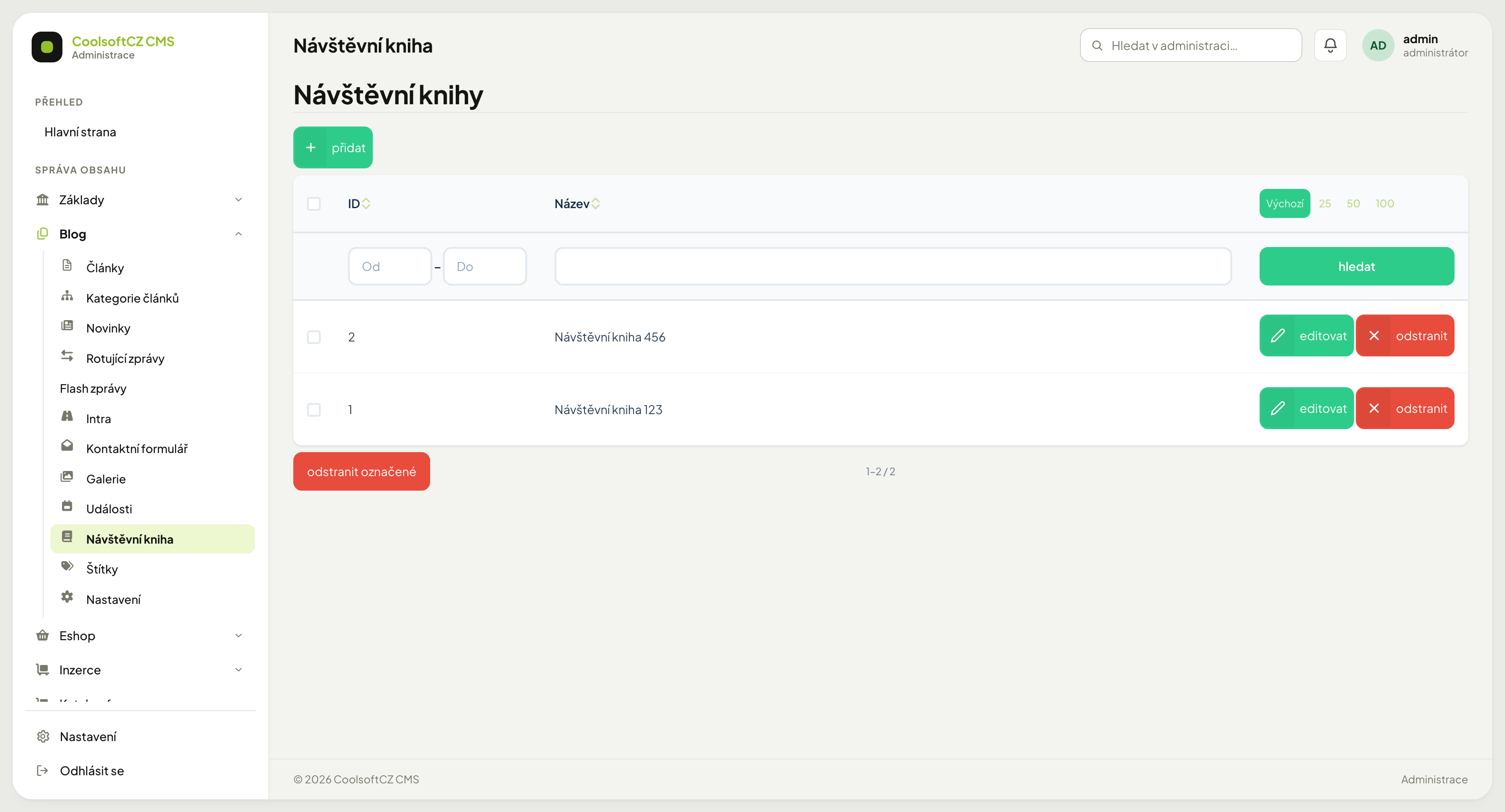
Public messages displayed to other visitors. Your job is moderation — deciding what gets published.
The book itself, in the list, is just a multi-language name. You find the actual posts only after opening a specific book for editing, in the Comments tab — they are posts of the shared comment system, the same one that runs under articles, ads, or companies.
Approval#
Whether a new post appears immediately or waits for approval is controlled by a switch in System settings. The default state is automatic approval — posts appear immediately until you turn the switch off yourself.
The switch is shared across the whole site, not just the book
Turning off automatic approval because of guestbook spam also stops comments under articles, ads, companies, and in discussions from showing without approval. Turn it on ahead of time, before spam shows up on the site.
Moderation#
In the Comments tab, each post has these actions:
| Action | What it does |
|---|---|
| Edit | opens the post's form; check/uncheck Approved |
| Delete | the post disappears from the site; it stays in the administration and can be restored with Restore |
| Reply | adds a reply to the thread |
There is no separate "hide" — deletion is soft (just a flag), so it does the same job.
Deleting a post also hides the replies under it
The site only displays approved, non-deleted posts, and it builds the reply tree only from those. Delete a post that someone replied to, and the whole branch below it disappears from the site — even replies that are fine on their own. Restore the deleted post with Restore, otherwise the replies stay hidden.
Contact form#
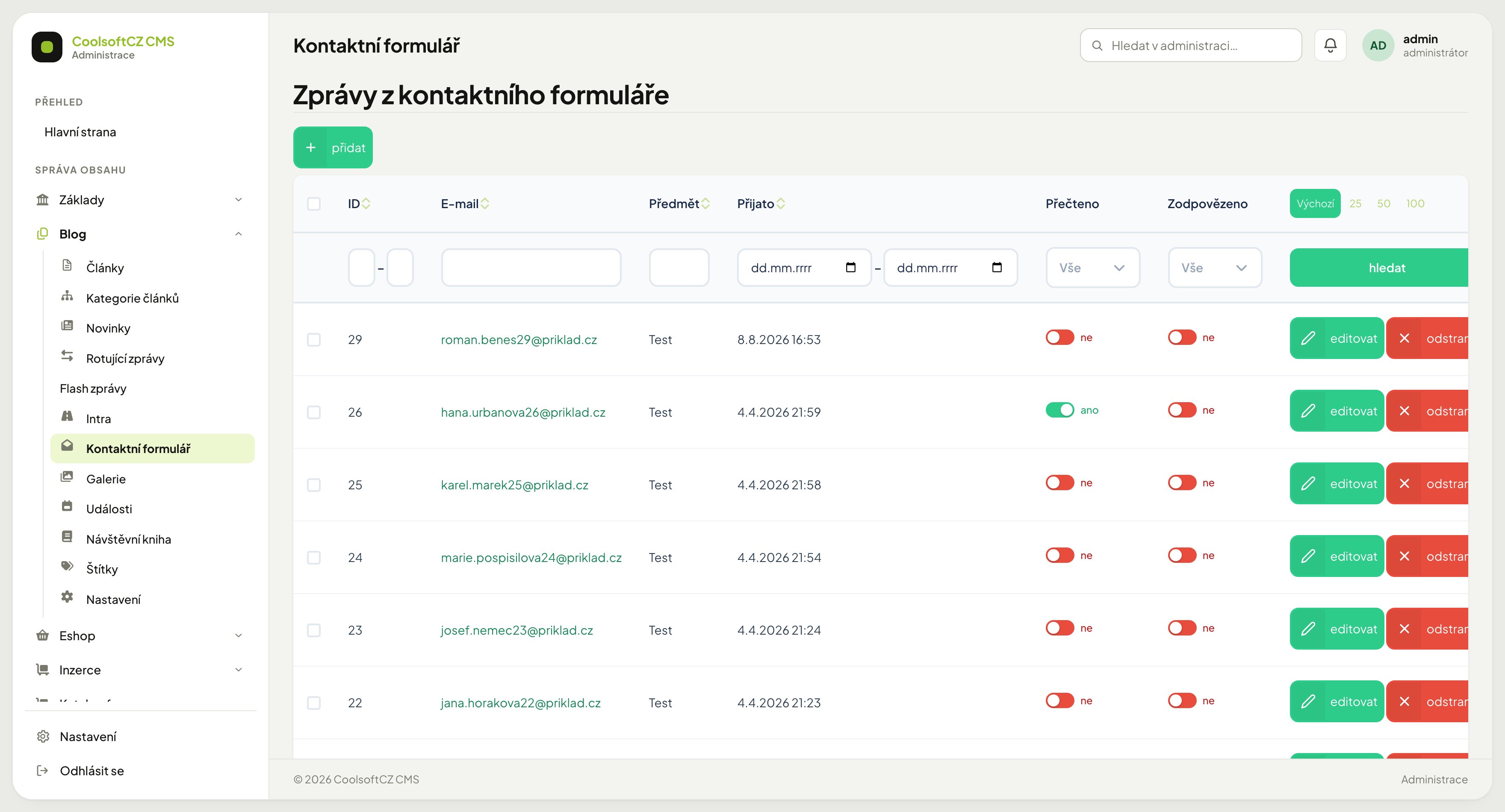
Messages sent through the form on the site. They are shown to nobody else — this is an inbox. One message text has at most 10,000 characters; the form does not send a longer one.
Handling a message#
- Open the message — opening it automatically marks it as read.
- Reply from your own email to the sender's address.
- Mark it as handled with the toggle in the overview.
There is no archiving. A handled message stays in the overview; only deleting removes it from the list, and that is irreversible.
The administration is not a mail client
The overview exists so that no message gets lost. Replies are sent by ordinary email — no reply is composed in the administration.
The form is limited against flooding
A visitor who is not signed in can send at most 5 messages an hour from one email and at most 20 from one connection. The form refuses the next message and asks them to try later. The values are set by the server administrator.
When messages do not arrive#
A message is stored in the administration and sent by email. If it reaches the administration but not your inbox, the problem is in sending, not in the form:
- Check the E-mail queue — is it stuck there?
- Verify the SMTP settings.
- Look in the spam folder.
Do not rely on email alone
E-mail is easy to lose. The overview in the administration is the safety net — go through it from time to time, even when you believe everything arrived.
Spam protection#
Both forms are targets for bots. When spam gets out of hand:
- Turn off automatic approval in System settings (this affects everything, see above).
- Add the repeat sender to the Blacklist — it applies to guestbook entries and to the contact form alike.
- Check that form protection is enabled in the site settings.
The blacklist is not the answer to bulk spam
It blocks one address or IP. Against bots that change address on every submission, only form protection helps.