Working with forms#
A form opens via Přidat (Add) above the table or Upravit (Edit) on a row. It looks the same everywhere, whether you are editing a user or an invoice.
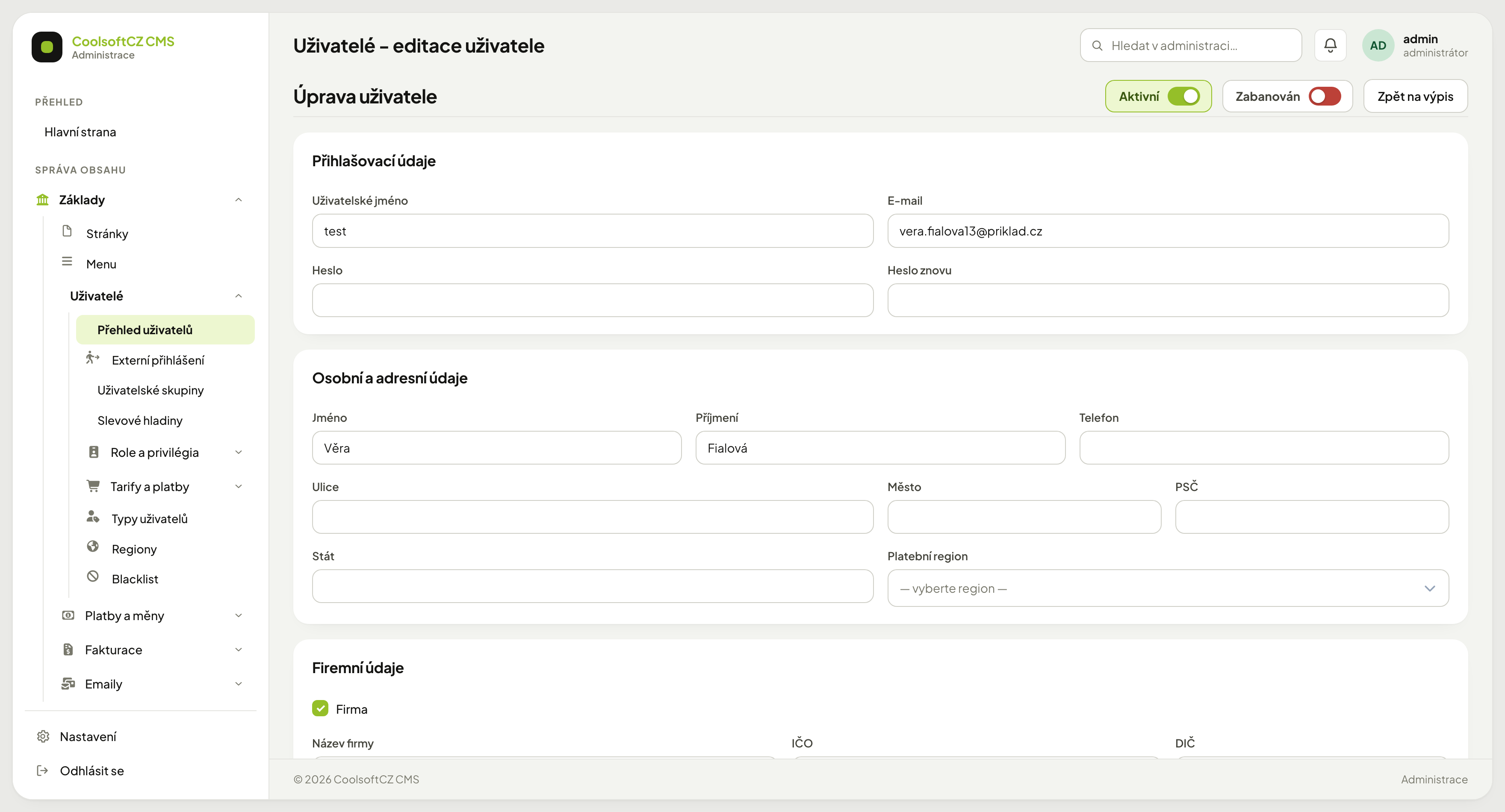
Parts of the form#
Toggles in the top right. Record states — typically Aktivní (active), plus Zabanován (banned) on a user. They switch on click and take effect on save.
The "Zpět na výpis" button returns to the list. It does not save — unsaved changes are discarded (with unsaved changes the browser asks first; see Leaving without saving).
Section cards. The form is split into logical blocks (Přihlašovací údaje, Osobní a adresní údaje, Firemní údaje). Longer forms have more sections stacked, or are divided into tabs.
Section tabs. Large forms (for example editing a company) have their sections in tabs. It is still one form: switching a tab neither saves nor loses anything. A tab holding repeated items shows how many there are, for example Tým 8 (Team 8).
The action bar sits at the end of the form, below the last section. On the left it shows the state of the form, on the right the buttons.
The action bar and the form state#
| Element | What it does |
|---|---|
| Bez neuložených změn (no unsaved changes) / Neuložené změny (unsaved changes) | the form state; as soon as you change anything (a field, text in an editor, adding, removing or moving an item) it switches to Neuložené změny |
| Zrušit (Cancel) | takes you back without saving |
| Použít (Apply) | saves and keeps the form open so you can carry on editing |
| Uložit (Save) | saves and takes you back to the previous page, usually the list |
On a new record, Použít switches you straight to editing it after saving.
Field types#
| Field | How it works |
|---|---|
| Text | ordinary typing |
| Dropdown | pick from values; empty reads — vyberte — |
| Checkbox | on/off; often reveals further fields |
| Toggle | two-state, coloured by state |
| Date | opens a calendar, or can be typed; time is entered to the minute, but saving without a change keeps the stored time including seconds (a validity end of 23:59:59 stays 23:59:59) |
| Record picker | a button opens a window with a searchable list |
| Rich text editor | formatted text, see below |
A checkbox can reveal further fields
For example Firma (company) in the Firemní údaje section enables company name, registration number and VAT ID.
Hiding a field does not clear its value
Unticking the box just hides the field — whatever is still typed in it gets submitted and saved. To actually clear a record's company details, delete their content by hand; unticking Firma alone is not enough.
Picking a record instead of a long dropdown#
Where a dropdown would hold hundreds of items, there is a button instead that opens a searchable window. Pick a record, the window closes and the name fills the field.
A selected record is cleared with the cross next to the field.
Repeatable groups of fields#
Some forms let you add rows (contacts, document lines, prices). An add button inside the section adds one; each row has its own remove button.
A removed row disappears only on save
Until then the change exists only on screen. Leaving the form without saving keeps the row.
List and item detail#
Some repeated items — for example team members, content sections and company parameters — are shown as a list on the left and the detail of the selected item on the right. Each item in the list shows its name (for a team member the name and job role) and a dot telling whether the item is public.
| I want to | How |
|---|---|
| edit an item | click it in the list; its detail opens on the right |
| add an item | the button below the list (for example Přidat člena týmu — add team member); the new item is selected at once |
| change the order | drag the item by the cross-arrows handle in the list, or use the ↑ ↓ arrows in the detail next to Položka X z N (item X of N) |
| remove an item | the trash icon in the item's detail |
| edit the texts in another language | switch the language inside the item's detail (Jazyk obsahu — content language) |
You can also move between items in the list with the up and down arrow keys.
If a hidden item contains an error (for example an empty required field), the form opens it by itself on saving, including the right language, and the item is marked in the list.
On a phone the list is a horizontal strip above the detail.
Changes are saved only with Použít or Uložit
Adding, removing and moving an item only show on screen for now. They are saved together with the whole form.
Rich text editor#
Formatted-text fields carry a toolbar. The editor sanitises pasted content — pasting from Word or another website drops part of the formatting. This is deliberate: foreign formatting would break the site's design.
To preserve structure, paste as plain text and re-apply formatting with the toolbar.
Editor size#
Every editor has a default height suited to its field: short texts smaller, the main content of a page or an article larger. Change the height by dragging the handle in the bottom right corner of the editor.
Fields for short texts, such as a perex (lead), grow with their content by themselves — the more text, the taller the editor, up to an upper limit; beyond that it scrolls. Such fields have no resize handle.
Saving and errors#
After saving you either return to the list or stay in the form, depending on the area. A result message appears at the top.
When a form cannot be saved, the system reports an error at the specific field plus a summary at the top. Nothing is saved — not even the fields that were fine.
The most common causes:
- a required field left empty that is hidden in another section or under a collapsed language tab,
- an unfilled foreign language on a multilingual field that is required,
- a value in the wrong format (date, email, number).
Look for the error in sections you cannot see
Error messages sit at the fields, not only at the top. If the top says the save failed but the visible part of the form shows no error, go through the other sections and language tabs.
Images that could not be stored#
If a form contains images and some of them cannot be stored, the save does not fail: the rest of the data and the other images are saved, and a warning appears at the top in the form "Uloženo, ale tyto soubory se neuložily" (saved, but these files were not stored) with a list of the skipped files. Each one has its reason in brackets:
| Reason | What to do |
|---|---|
| unsupported format | upload JPEG, PNG, GIF or WebP |
| dimensions too large (the largest permitted dimension is given) | shrink the image and upload it again |
| the file cannot be read | the file is damaged, try another one |
| the file could not be stored | try again, or contact the server administrator |
Upload the skipped files again in a corrected form; editing the record allows that.
Saving while files upload#
Files and images are uploaded into the form right after you choose them, before saving. If you click save before the upload finishes, the form is not sent at once: it shows the message Počkejte, než se dokončí nahrávání souborů — formulář se pak uloží sám. (wait until the files finish uploading — the form will then be saved automatically) and saves itself once the upload is done. You need not do anything else; just do not close the page until then.
A removed image#
If you remove an image from a gallery (or replace it with another) and save the form, the system deletes the image including its files on the server, unless another record uses it. Unneeded files thus do not pile up in the image library.
Submitting a new record twice#
A new-record form is saved only once, even if you click Uložit twice or send it again. The second submit takes you to the record created by the first one. If the system cannot check whether the first submit finished, it saves nothing and shows the message "The state of the previous submit of this form cannot be checked right now, so nothing was saved." The form stays filled in: look in the list, and if the record is not there, submit the form again.
Long work in a form#
A form you have been filling in for a long time still saves — as long as the administration has not signed you out for inactivity in the meantime (see How long you stay signed in).
Leaving without saving#
When the form shows Neuložené změny and you try to leave the page (through a menu link, the Zrušit or Zpět na výpis button, closing the window or reloading the page), the browser asks whether you really want to leave. Confirm and the changes are discarded. Saving the form resets the state and the browser no longer asks.