Orders#
The e-shop's daily work. An overview of what customers ordered, what state it is in and which documents came out of it.
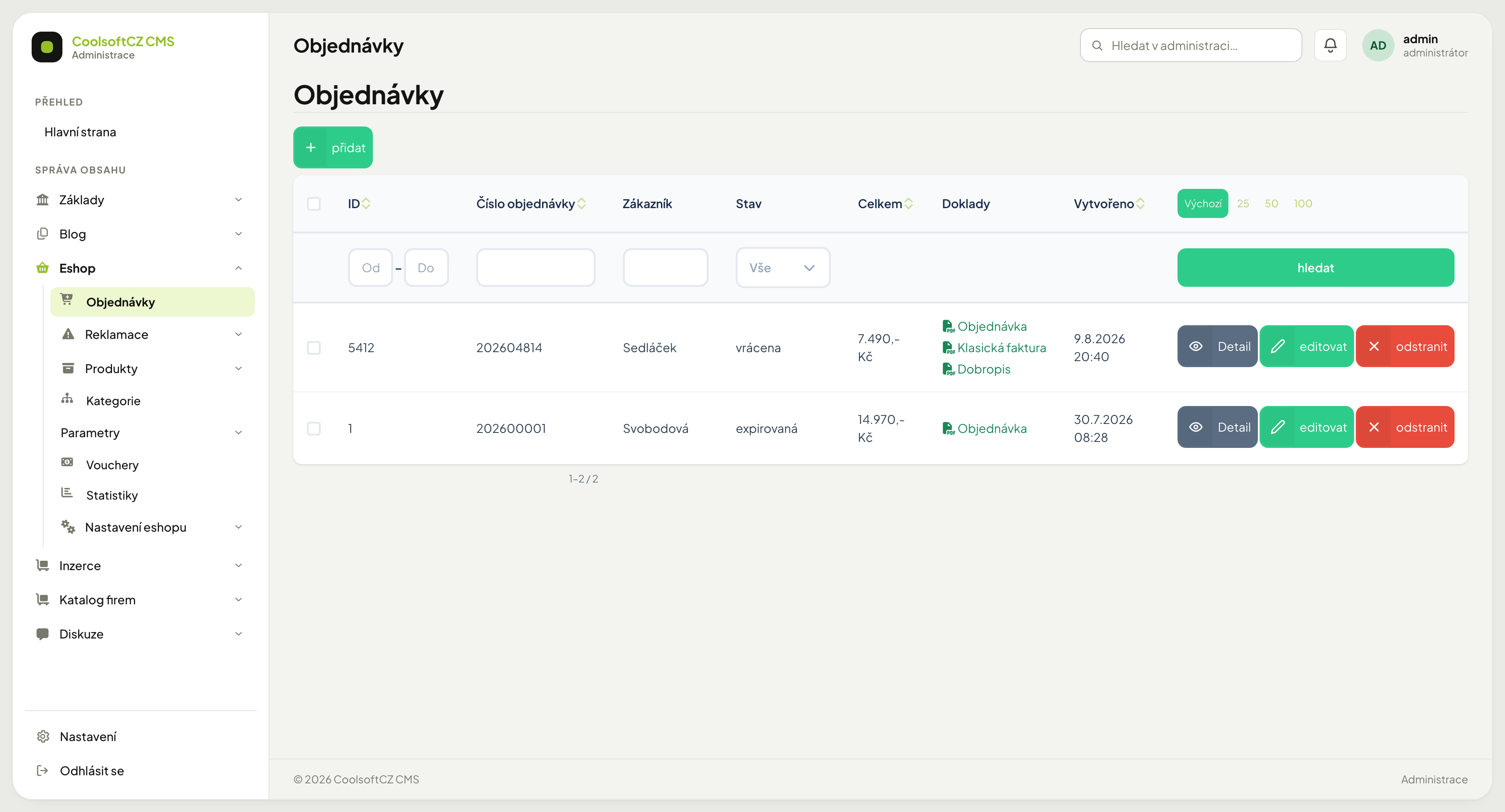
Find them under Eshop → Objednávky.
The list#
| Column | What it shows |
|---|---|
| ID | the internal record number |
| Číslo objednávky | the number the customer knows |
| Zákazník | surname or company name |
| Stav | the order status |
| Celkem | the total including shipping and VAT |
| Doklady | links to PDFs — order, invoice, credit note |
| Vytvořeno | when the order arrived |
Each row has three actions: Detail, editovat and odstranit.
Detail versus edit
Detail shows the order as it came in — items, prices, addresses, status history. Editovat opens a form where things can be changed. For routine processing, Detail and a status change are all you need.
Notification of a new order#
Every order from the checkout creates a notification in the bell
for all administrators. If you also want an email, switch on the ES_NEW_ORDER template in
the email templates (it is off after
installation). The "New order #…" email goes to the email of the order's seller
(Fakturace → Prodejci); if the seller has none, to the website's sender address. It
contains the number, date, customer, contact, shipping, payment, total and a link to the
order in the administration. An order created in the administration and a status change do
not send it.
Documents#
The Doklady column offers the PDFs generated for the order. They are not created by a button but by a status change — the status decides which document to issue.
One order can carry several documents at once: the order, an advance invoice, a regular invoice and a credit note.
Processing an order step by step#
- Open Detail and check the items and the address.
- Confirm the payment arrived — for bank transfers, via User payments.
- Switch the status to odeslána only once you actually hand the goods over.
- After delivery, switch to dokončena.
Switch the status when it has actually happened
Sent deducts stock, done awards the customer loyalty points. Switching ahead "to get it out of the way" puts your stock out of step with reality.
Editing items#
The order form allows changing quantities and adding or removing items.
Whether the form offers VAT fields follows the seller
The VAT controls appear on an order according to whether the seller company is VAT registered — see My companies. It is not set in the e-shop settings. If the company stops being registered, the VAT fields disappear from new orders; orders already saved keep their own state.
Totals recalculate, the document does not
Once an invoice has been issued, editing the items does not change it. An issued document carries a number from the series and must not be rewritten. It is handled with a credit note and a new document — see Invoices.
Pickup point#
If the customer picked an external carrier's pickup point when ordering (Zásilkovna, Balíkovna, PPL — see Carriers and shipping tariffs), you'll find it in two places:
- In the order list — the Výdejní místo column (the point's name and code), which can also be filtered by text.
- In the order detail — the Výdejní místo section with the carrier, code, name and full address.
Dispatch step by step#
- Open the order and switch the status to the one that handles dispatch (the form offers dispatch fields).
- Above the dispatch fields you'll see a hint, "Zákazník zvolil výdejní místo:", with the point's code and name — just copy it into the carrier's own shipping system.
- Hand the shipment over directly in the carrier's own system (Zásilkovna/Balíkovna/PPL) — the system does not create or track the shipment itself.
How to: change or enter a point manually#
If the customer picked the wrong point (or the admin creates the order directly), the pickup point on the order can be picked or overwritten afterwards:
- In the order detail, click Upravit výdejní místo in the Pickup point section — it opens the order edit form right at the "Shipping and payment" section. There, the Pickup point block only shows up for a tariff that has the pickup point turned on (other tariffs do not offer the fields).
- The Vybrat na mapě button opens the carrier's widget; after picking a point, the six fields (code, name, street, city, zip, country) fill in automatically from the widget. If the carrier has no widget script or API key configured, the button does not appear and a notice shows instead — "This carrier has no widget script or API key configured — fill the pickup point in manually (the point code is required, copy it from the carrier system)." — but the fields can still be filled in.
- Any of the fields can also be overwritten by hand — once you do, the manual values take over and the widget's data is discarded. For a manual entry you need at least the code and name; without them, saving fails with "Vyberte prosím výdejní místo, kam se má objednávka doručit." ("Please pick a pickup point for the order to be delivered to.")
- Saving writes the point into both the order and its delivery address.
Untouched fields stay a snapshot
Until you edit the fields, they only show what the customer chose on the storefront (or what the admin picks in the widget). Without a manual edit or a new pick on the map, the point does not change or disappear on its own.
Cancelling#
Switch to zrušená. That status has "Cancel the order" enabled, so the stock reservation is released.
Customers may cancel only in some statuses
The Allow cancelling toggle on the status decides. By default a customer can cancel while the order is created or approved; from awaiting payment onwards they cannot.
A payment that does not settle the order#
An order awaiting payment holds its goods in stock only for a limited time. When a customer pays late, the system first tries to renew the reservation before switching the order to paid. Usually this works and the order is paid as normal.
If the goods have run out in the meantime, the system neither switches the order to paid nor cancels it — the money has already arrived and the decision is yours. It does this instead:
- it writes into the Poznámka ke stavu (status note) field which payment arrived and why the order stayed unpaid,
- it creates a Platba objednávky vyžaduje zásah (order payment needs attention) notification in the bell with a link to the order (see Notifications).
You get the same notification when a payment arrives for a cancelled order or when the amount received is lower than the order requires.
Procedure: handling a payment that did not settle the order#
- Open the order from the notification and read the Poznámka ke stavu.
- Decide:
- you will restock — receive the goods and switch the order to paid by hand,
- the goods will not come — cancel the order and refund the customer.
- Tell the customer the outcome.
A customer cannot pay a cancelled order
The payment page and creating a new payment both fail for a cancelled or expired order. The notification therefore concerns only payments the gateway completed before the order was cancelled.
When the goods cannot be reserved at checkout already
If the shop does not sell without stock and the reservation fails when the order is submitted, the order is cancelled straight away (stock released, vouchers returned, no emails) and the customer is asked to check the cart and submit again. It never reaches payment.
Searching#
You can filter by an ID range, order number, customer and status.
Outstanding orders
Switch the Stav filter to approved and you get the queue to dispatch.
An order that never arrived#
When a customer insists they ordered but the list shows nothing:
- Is a filter still set? The most common cause — see Search and filters.
- Did they finish the order? A cart without confirmation creates no order.
- Did it expire? Unpaid orders can expire after a while.
- Did the payment fail? The order then exists in the awaiting payment state.
- Is the customer on the blacklist? The website refuses an order with a blocked e-mail or phone, or from a blocked IP address, and the customer sees a message that sending is not allowed.