My companies#
Who you invoice on behalf of. Find them under Fakturace → Moje firmy.
Three levels#
The company card itself holds little. What matters sits in the records beneath it:
| Level | Holds |
|---|---|
| Company | the card name, whether you are VAT registered, the user type, how prices are shown on the site |
| Contact | the invoicing identity — name, company number, VAT number, address |
| Bank account | number, bank code, IBAN, SWIFT |
Why this is not one card
One company may invoice under several addresses — registered office and branch — and hold several accounts by currency. The invoice then picks the combination that fits.
The invoicing contact#
| Field | Note |
|---|---|
| Name and second name line | two lines for a longer trading name |
| Company number, VAT number | identification |
| Street, city, postcode, country | the address |
| E-mail, phone | |
| Information | the line under the address — the commercial register entry |
| VAT information | a note about the VAT regime |
The commercial register entry belongs in Information
It prints under the address. It is the only place with room for it.
Are you VAT registered?#
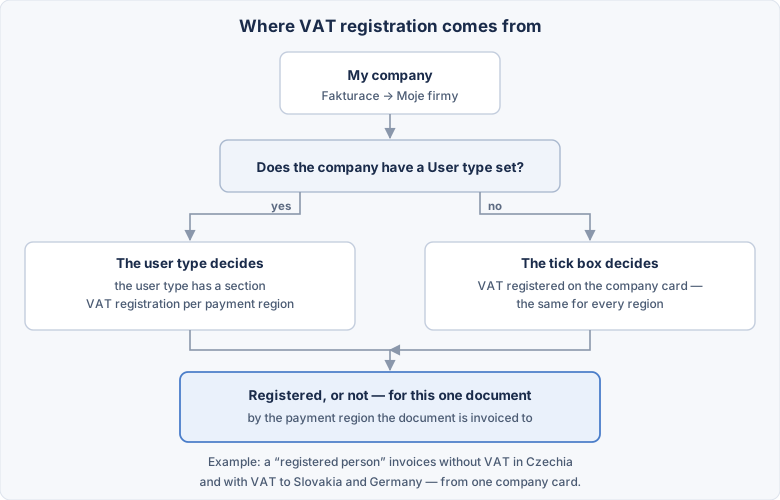
Two fields on the company card cover this: the Plátce DPH (VAT payer) toggle and the Typ uživatele (user type) picker. The type is the more detailed one and wins.
The user type#
The type says in which payment region you are registered and in which you are not. The usual split:
| Type | In Czechia | To Slovakia and Germany |
|---|---|---|
| Plátce DPH (VAT payer) | with VAT | with VAT |
| Registrovaná osoba (registered person) | without VAT | with VAT |
| Neplátce DPH, Soukromá osoba (non-payer, private person) | without VAT | without VAT |
Which regions belong to which type is set on the type itself — see User groups and types.
An example
You are a registered person based in Czechia. A Czech customer gets a document without VAT, a Slovak one gets it with VAT — and you need not think about it. The system sees where the invoice goes and picks the right variant itself.
If you leave the type empty#
The picker offers — podle příznaku Plátce DPH — (by the VAT payer flag). Leave it there and the Plátce DPH toggle decides, the same for every region. It is a safety net, not a fault.
A filled-in type must cover the region you invoice to
If the company has a type and that type has no tick for the payment region in question, the document is not issued and the administration says why. This covers documents you issue yourself — by hand and by closing a job. For documents created automatically from a received payment the Plátce DPH toggle is used instead — so that a payment already made stays documented.
What else the Plátce DPH toggle drives#
Besides the safety net above it also drives the e-shop and the site's paid services: it decides whether tax is added to prices at all. See Price lists and VAT and Tariffs and memberships.
It is only a default for a new invoice
VAT can be switched on an individual invoice. Changing it on the company card does not recalculate documents already issued.
The document's look follows the same thing#
Registration also picks the tab in the PDF variant matrix — the registered one or the non-registered one. See PDF layouts.
Zobrazovat ceny s DPH (show prices with VAT)#
The second switch on the company card. It does not decide how much the customer pays, but which number they see. Every price on the site — in the e-shop price list and on tariffs alike — is entered as the base excluding VAT; this switch says whether the rate should be added when the price is printed.
| Company | Switch | What the customer sees | The note in the cart and summary |
|---|---|---|---|
| not registered | (irrelevant) | the base from the price list | none — VAT is never mentioned |
| registered | on | the base plus the rate | "Prices include VAT." |
| registered | off | the base from the price list | "Item prices are listed excluding VAT; the summary amounts include VAT." |
The note appears in the mini cart, the cart and the order recapitulation — there is no label next to prices in listings or on the detail. The tariff payment form has its own wording, see Tariffs and membership.
Step by step: switching the site to tax-inclusive prices#
- Open Fakturace → Moje firmy and the company you sell on behalf of.
- Check that Plátce DPH is ticked (or that it has a user type that makes it registered). On a non-registered company the switch has nothing to do.
- Tick Zobrazovat ceny s DPH and save.
- On the site, walk through a product listing, a detail, the cart and the payment form, and check the amounts.
Nothing is recalculated and nothing is rewritten
The price lists stay untouched — the switch takes effect only when a price is printed. Turning it back is therefore exactly as safe as turning it on. For the same reason the shown prices realign themselves when a VAT rate changes.
It does not move the amount charged
A registered seller charges tax with the switch off too. The cart summary, the payment form total and the document always show what the customer really pays — the switch aims only at the prices of individual items.
If you sell to consumers, turn the switch on
With it off, the customer sees a lower number on the goods than the one that comes out in the cart. In consumer sales that is misleading and a ground for complaint; the switch belongs turned off on sites that sell to businesses.
Invoicing does not follow it
The switch has no effect on documents whatsoever — what is invoiced with tax and what without is decided by the registration above.
The bank account#
Fill in both the account number and the IBAN where available.
With neither, no QR code is produced
A QR payment needs at least one of them. With both missing, the invoice comes out without a QR code and nothing reports it.
The default company#
The module settings decide which company, which contact and which account are used when automation asks for an invoice.
Without them automatic documents are merely deferred
An invoice from a payment or from a schedule has nowhere to take the seller from. The system does not create it, it just tries again next time — and again. Set the default trio right at the start.
The details on an invoice are an imprint#
On an issued invoice the address and the bank details are copied.
Changing the company does not rewrite old invoices
A changed address or account shows only on new documents. Old ones stay as they were issued.